¶ Viewing Devices
-
Login to your DEX dashboard.
-
Select Devices on the left side navigation menu and click the device you wish to view.
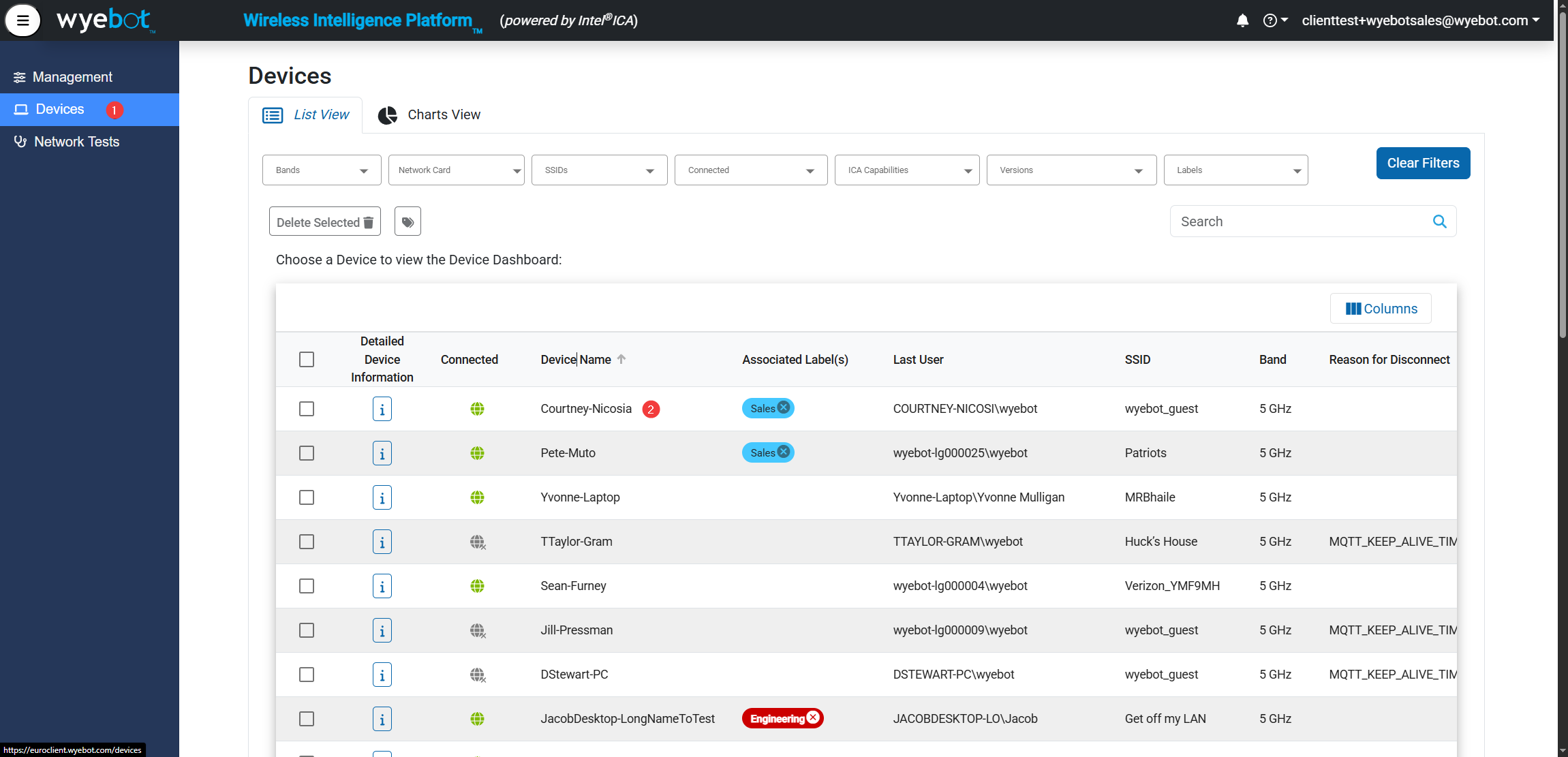
- On the device's page, you will see a list of informational tiles such as Issue Detail, Access Points, and Device Information. You will also see the results of any network tests this device is configured to run.
¶ Informational Tiles
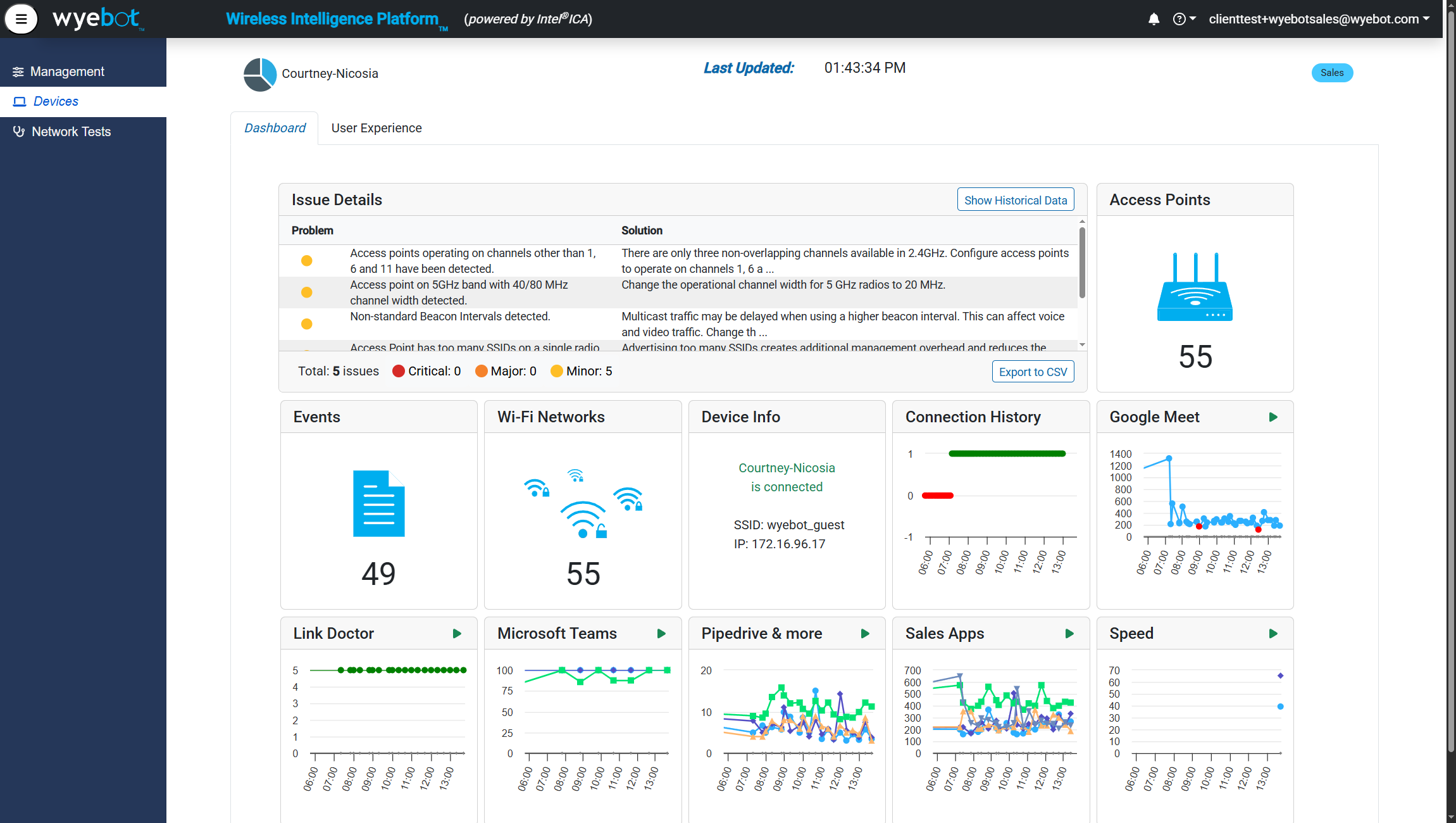
These tiles exist for every DEX client and show status, information, and a list of detected problems.
¶ Issue Detail
List of issues found by the automated problem detection and solution recommendation engine. These can be expanded for further details.
¶ Access Points
List of all detected access points by this client and their relevant information
¶ Events
List of all events this client has experienced.
- Roaming
- Disconnects
- Authentications
- DHCP logs
- and more!
¶ WiFi Networks
List of all detected SSIDs by this client. Each SSID can be expanded to show BSSIDs or AP radios.
¶ Device Information
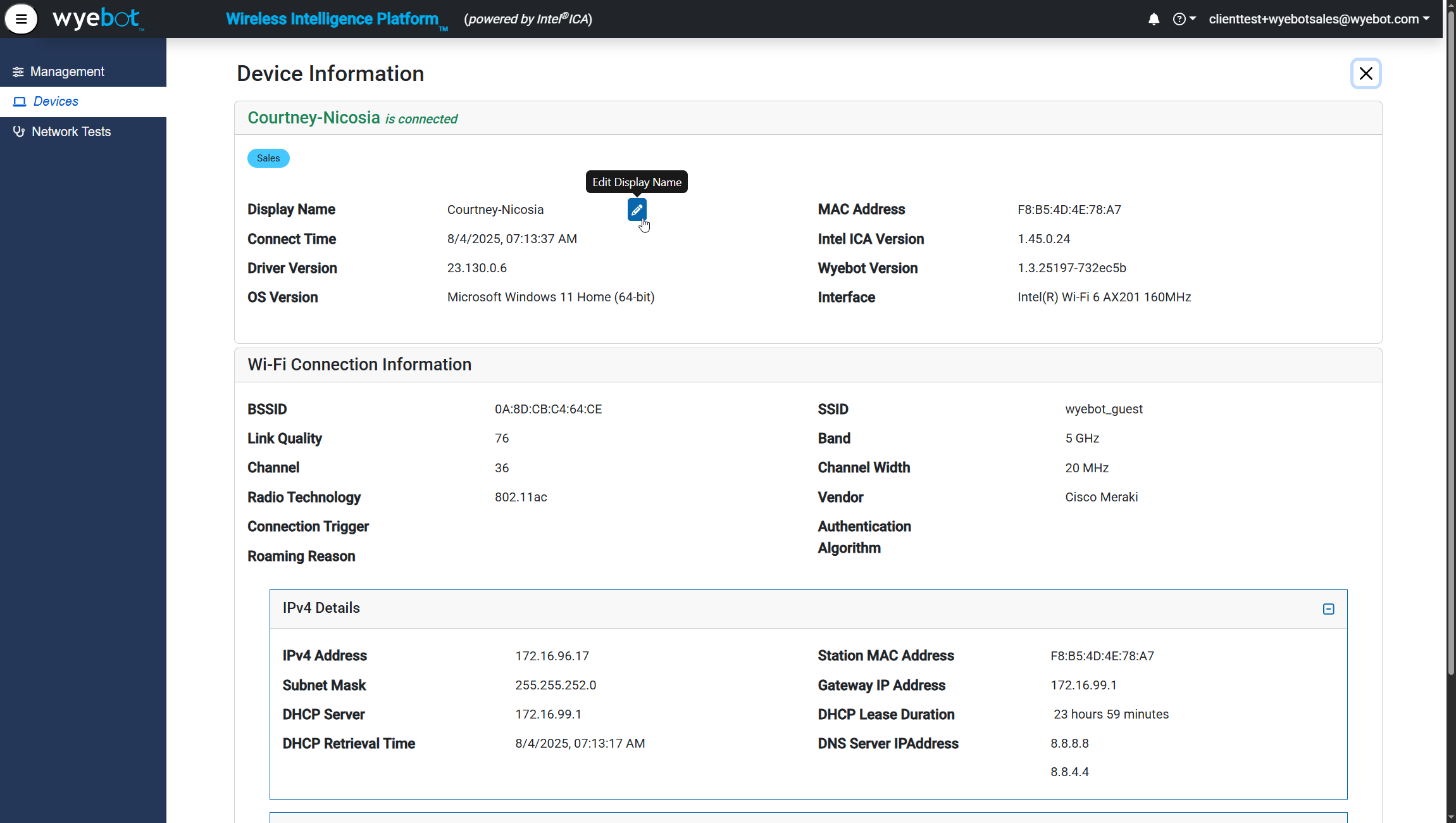
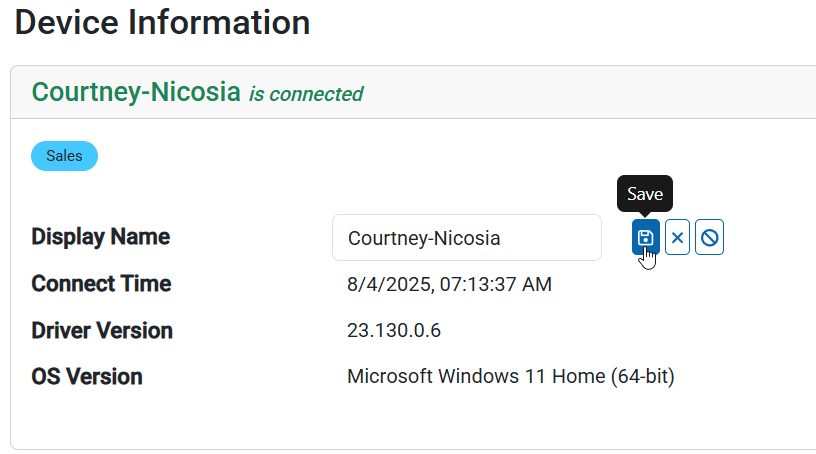
Detailed breakout of client information. The display name can be adjusted here.
- Driver version
- DEX agent version
- Connection status
- IP address info
¶ Connection History
A graph of this clients connection over the past day, week, or month.
¶ Network Test Tiles
Each network test that you configure for this client will recieve a corresponding tile to review the data. Head over to our Network Test section for details on each.
Hovering your mouse over the tiles will display a preview of the results.
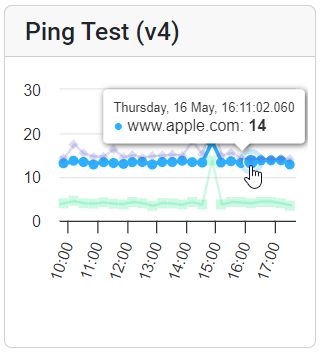
Clicking on the tiles will open the expanded view for detailed test results and an adjustible historical view.
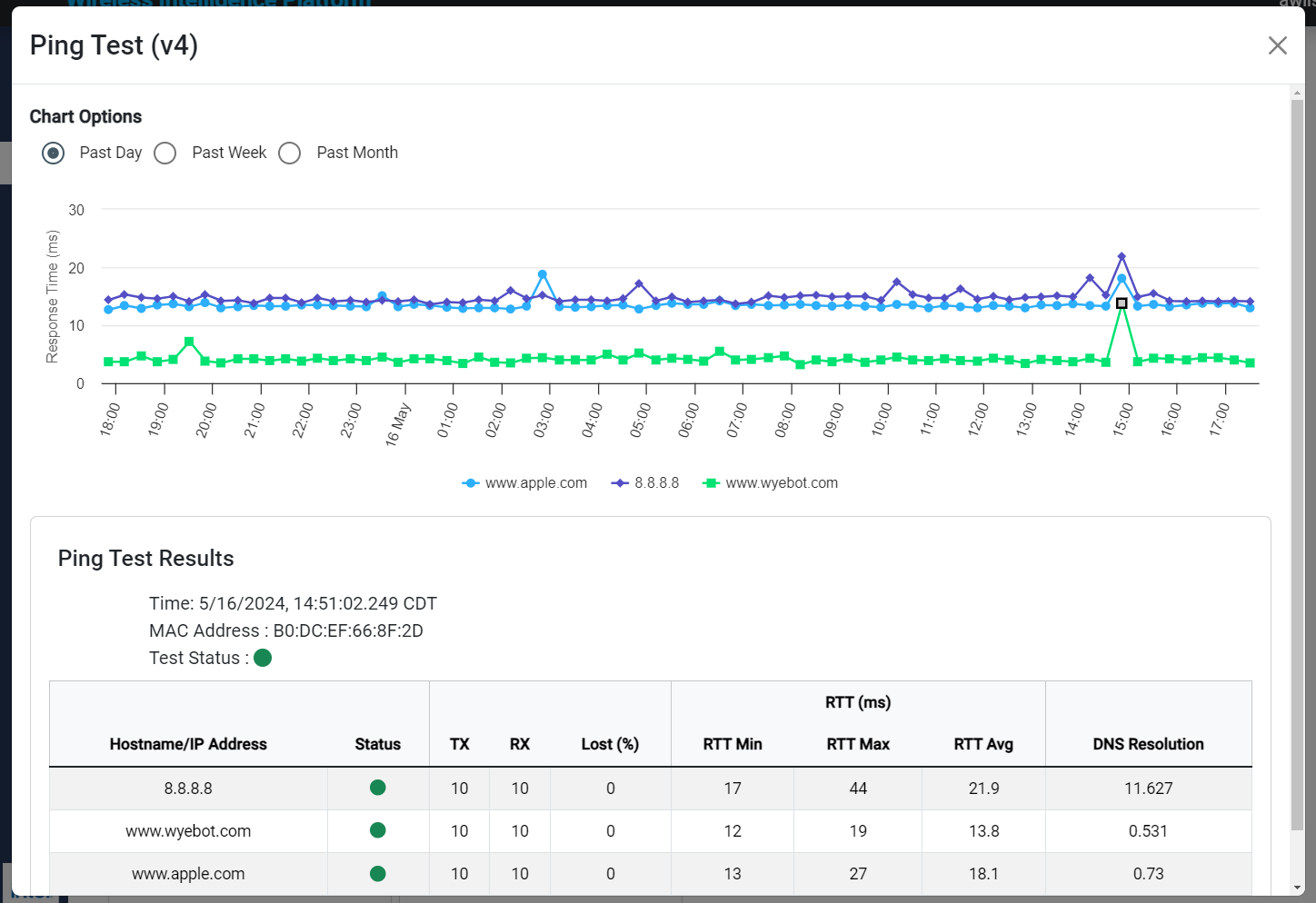
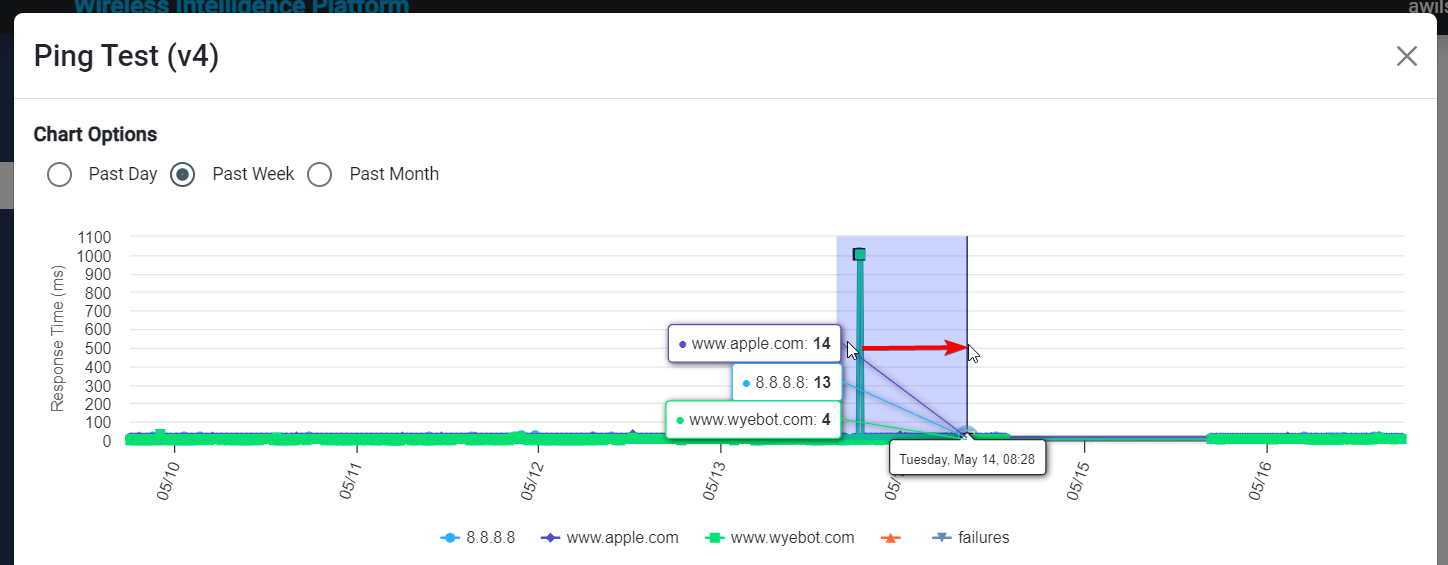
Clicking and dragging your mouse cursor on the graph will zoom into a specific time frame.
¶ Changing a Display Name
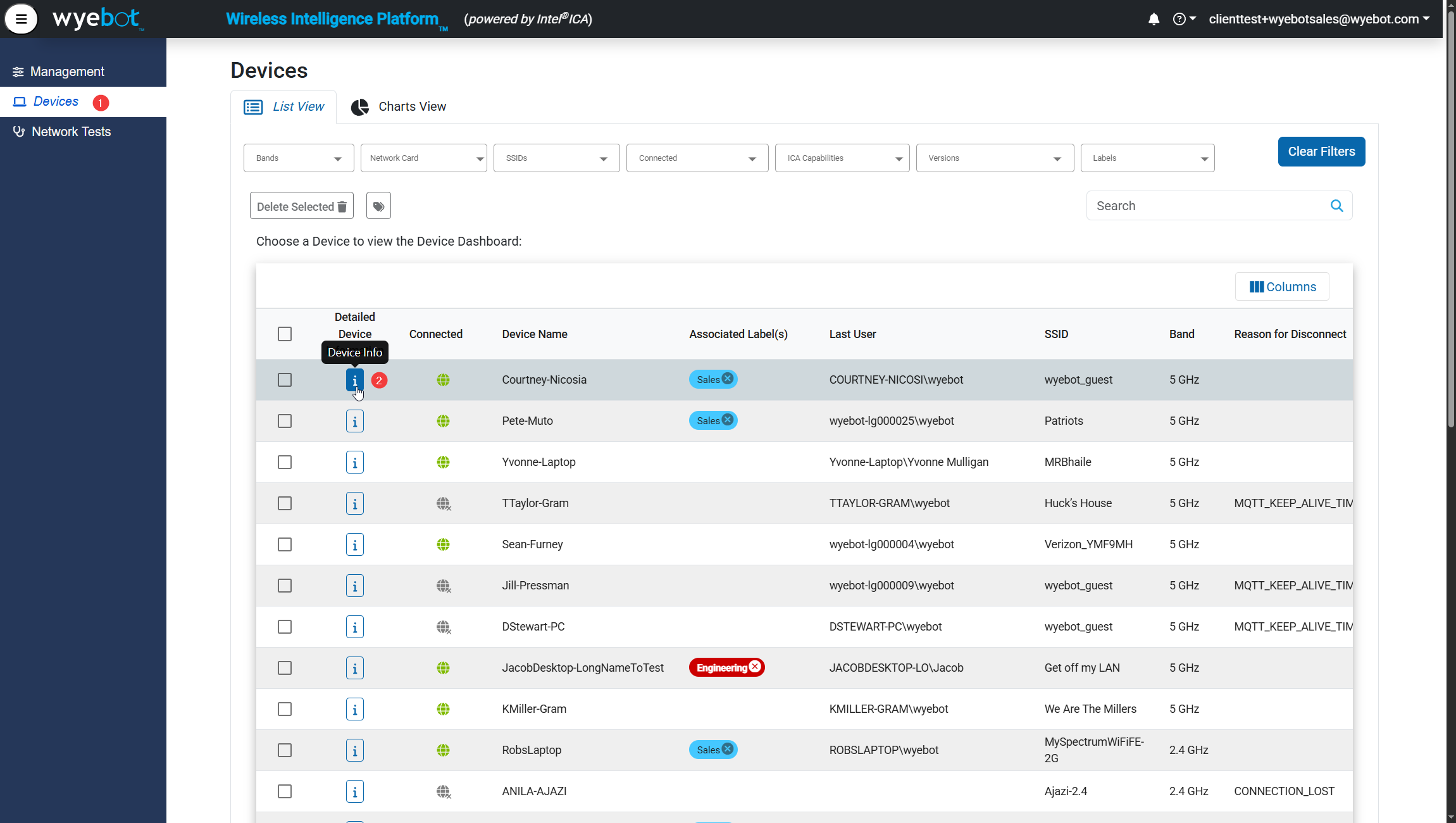
- Select Devices on the left side navigation menu and click the
isymbol to open the Device Info.
- Click on the pencil icon to edit Display Name
- Enter the new name and click the save button.
¶ Deleting a Device
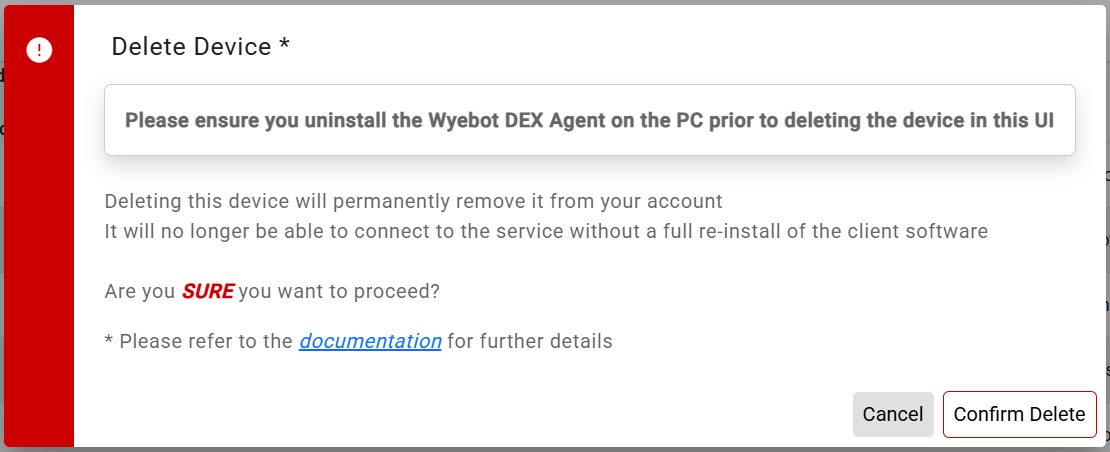
To remove unwanted devices or to free up licenses for DEX Agent monitoring, devices can be deleted from the UI.
When a device is deleted, it's registation ID is permanently rejected. Therefore, to re-add a deleted a device the software must be reinstalled. We highly suggest uninstalling the DEX Agent software from devices that you plan on deleting.
-
Uninstall the service from the device you wish to remove.
-
Select Devices on the left side navigation menu and click the device name.
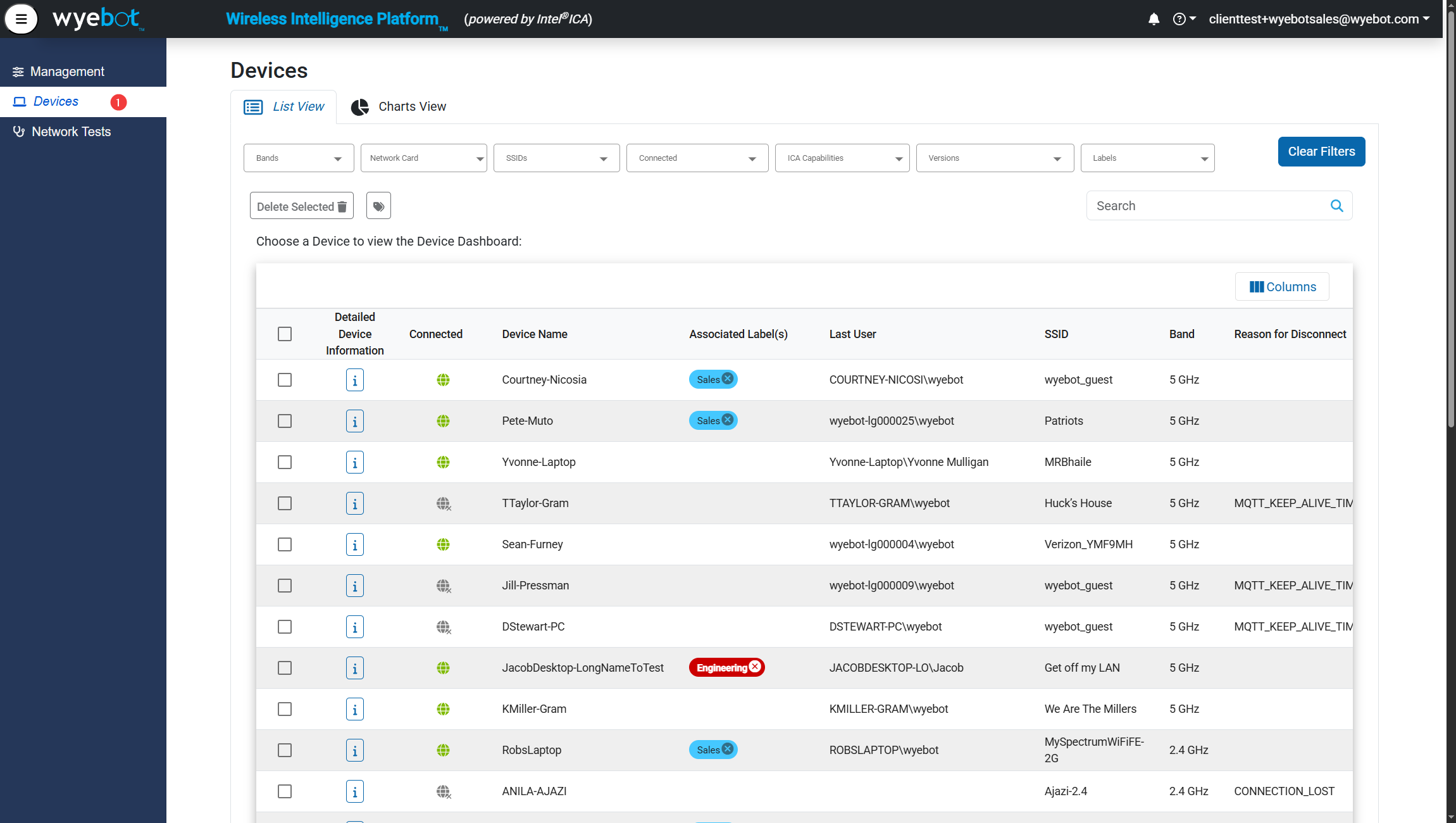
- Mark the check box to the left of the device(s) that you would like to delete.
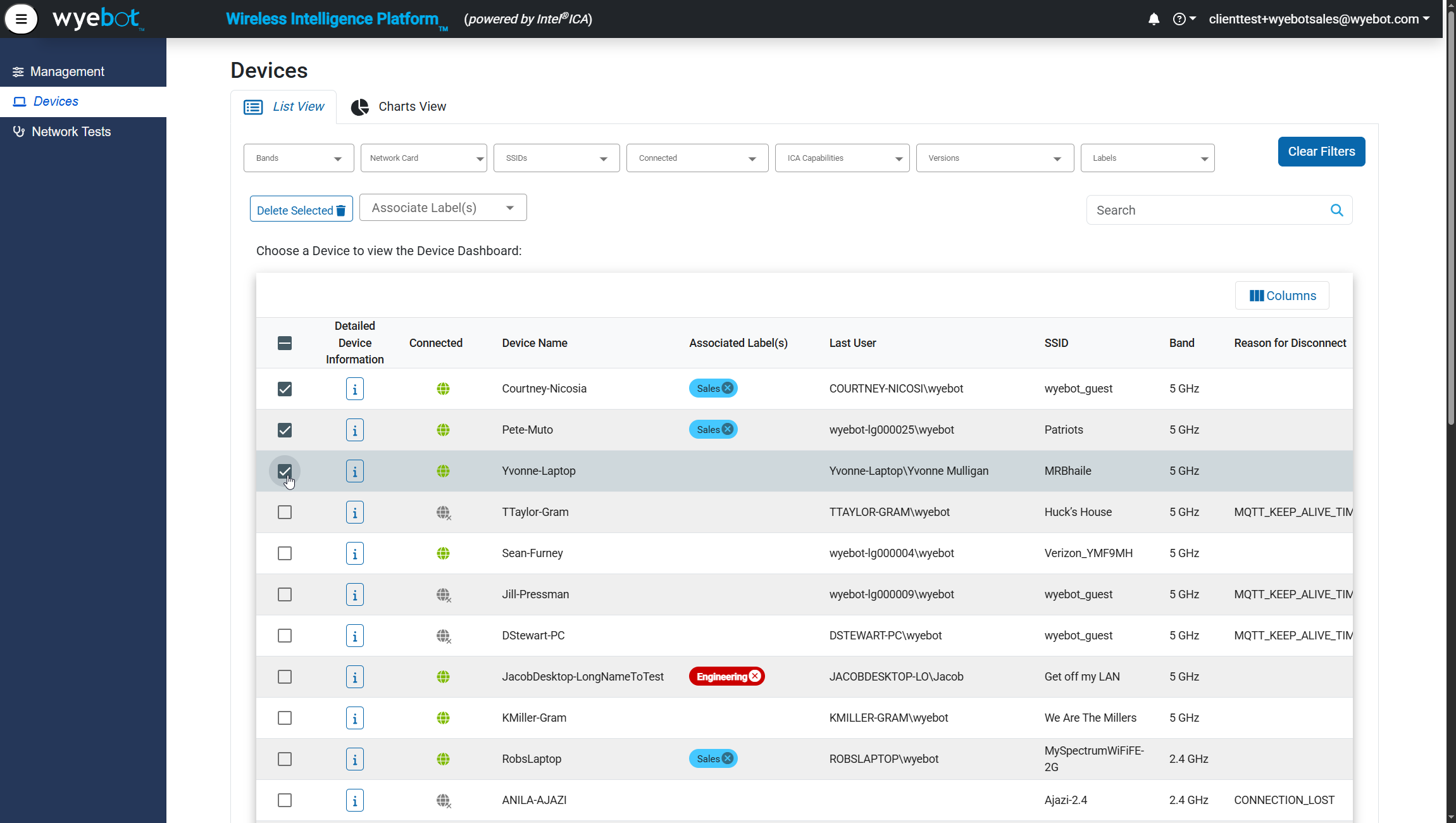
- Click the Delete Selected button at the top.
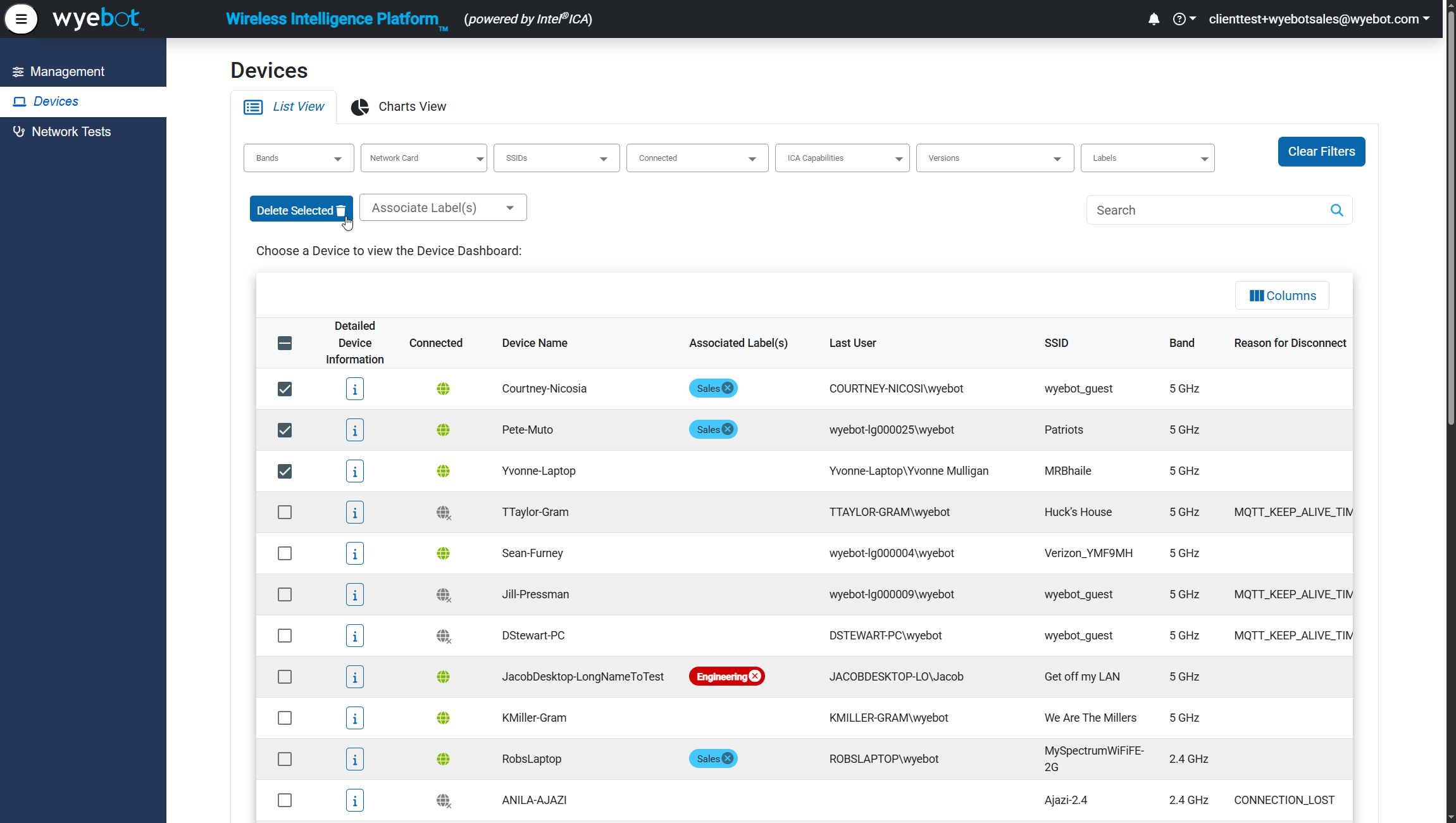
- Click Confirm Delete on the warning dialog.