¶ Introduction
This article provides step by step instructions to add the DEX Dashboard as an SSO app within Google Workspace. Please follow the steps in this article in order. If you have questions email support@wyebot.com.
¶ Instructions
This guide was written using the Google Worskpace dashboard as of 11/26/2024 - future revisions may change the interface slightly.
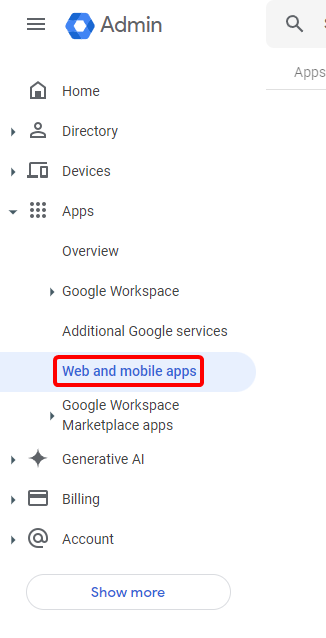
- Log into your Google Workspace admin console. On the left-hand sidebar, click Web and mobile app.
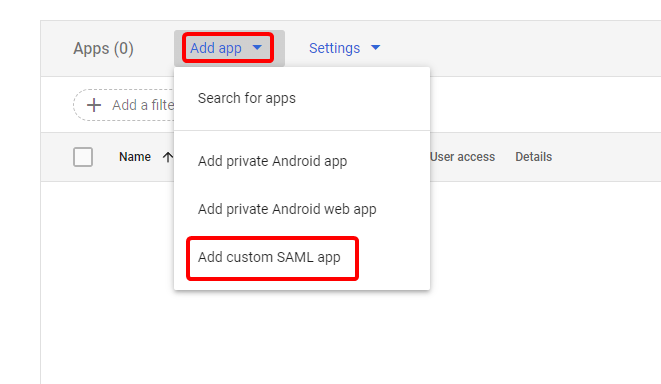
- Click the Add app dropdown and select the Add custom SAML app option.
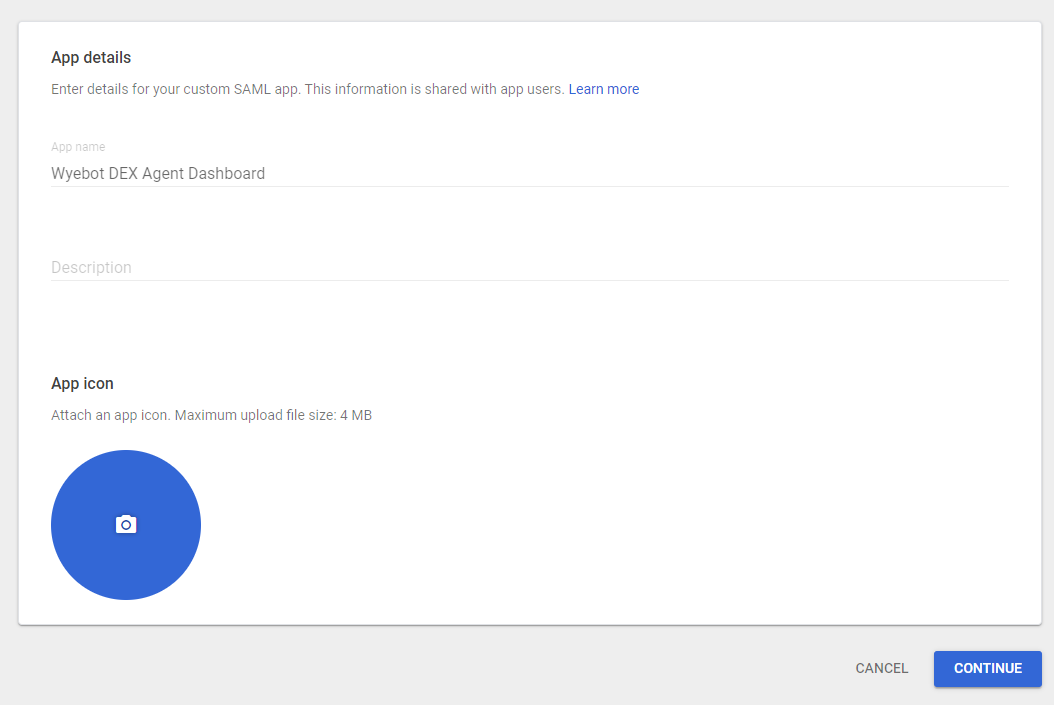
- Name the app whatever you'd like and click Continue.
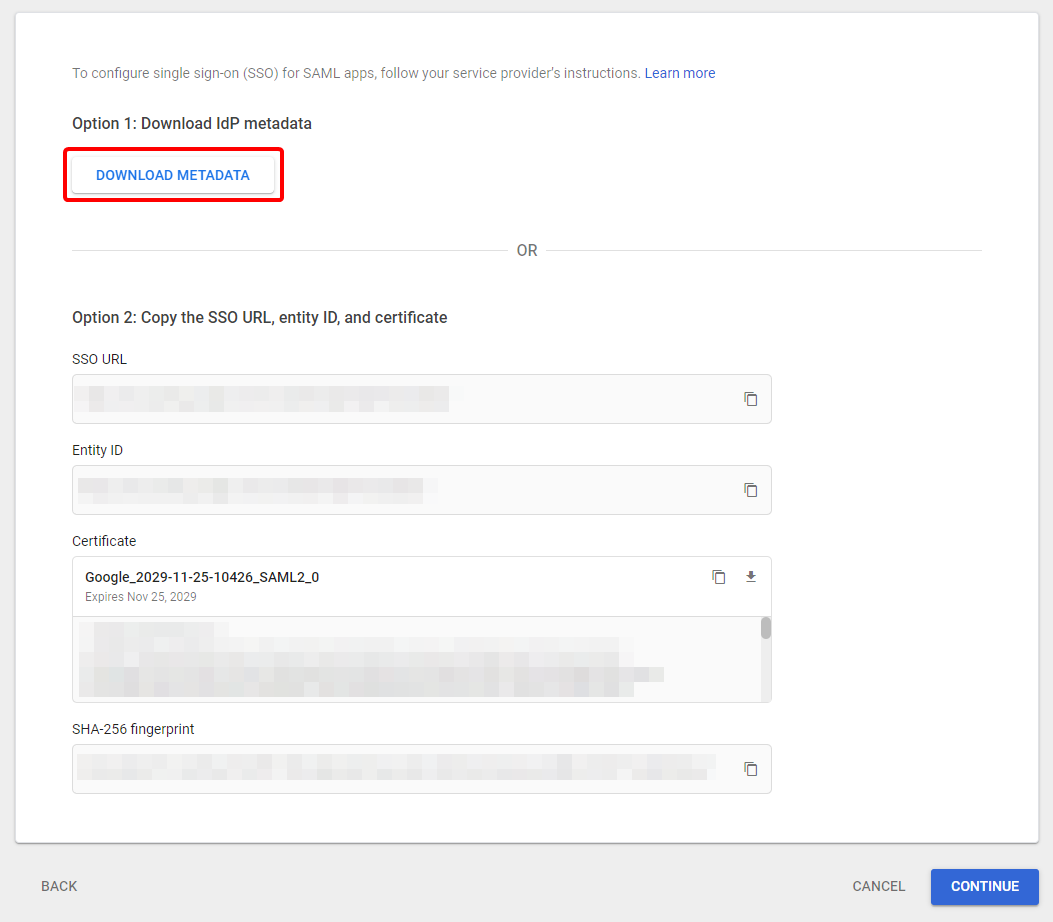
- Use Option 1 to download the IdP metadata by clicking Download Metadata, then click continue.
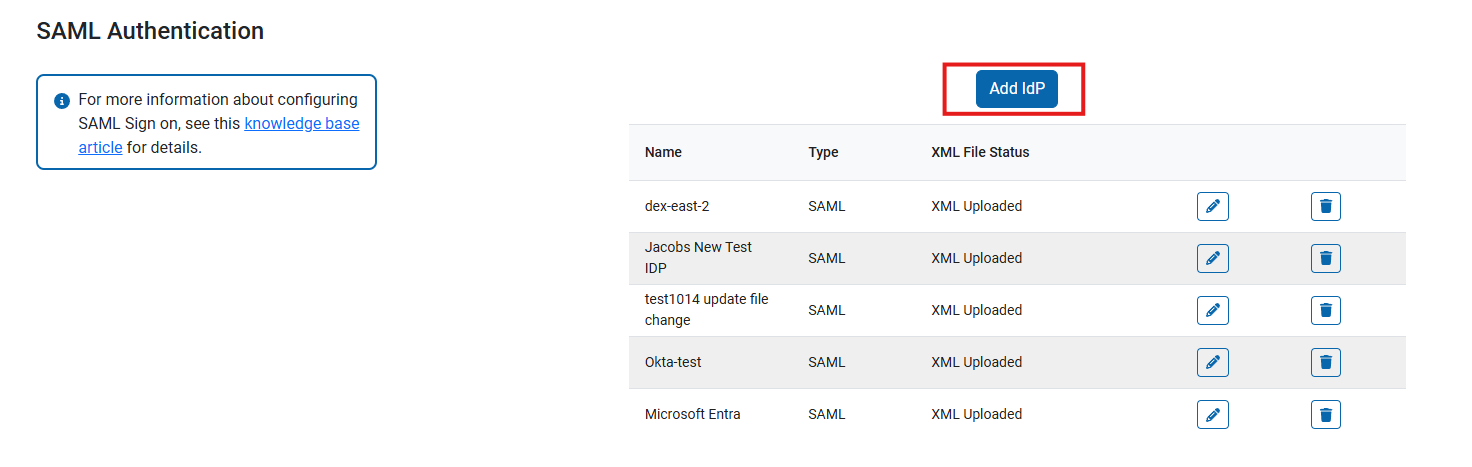
- In a new browser tab, log in to your DEX Agent dashboard. Navigate to the Users tab. Scroll down until you see SAML Authentication. Click the Add IdP button.
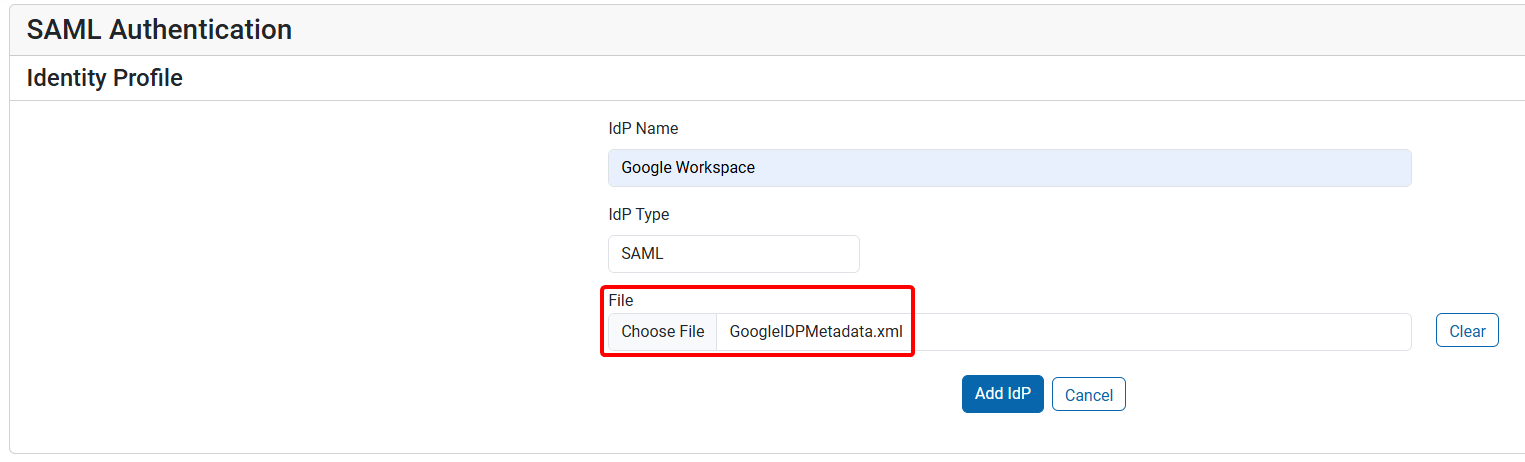
- Set the IdP name as you'd like and upload the XML file that was downloaded from Google Workspace then click Add IdP
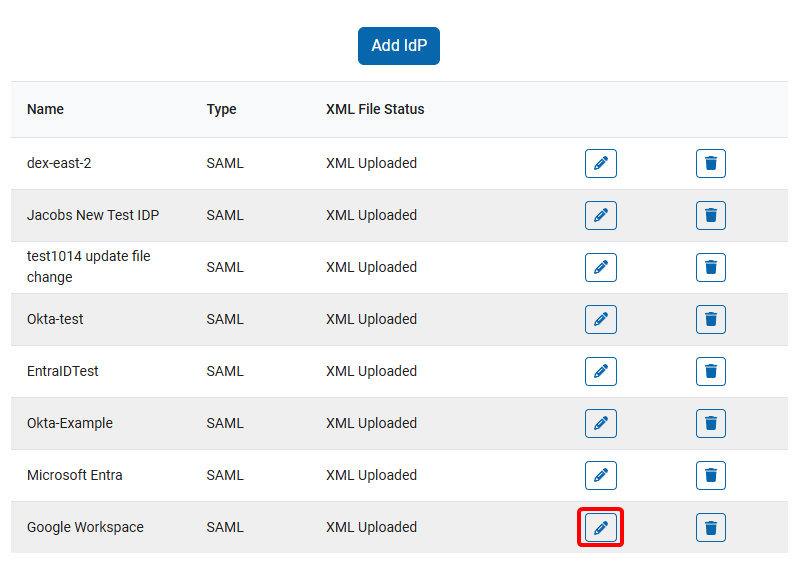
- Click the pencil icon next to the new IdP.
- Return to the Google Workspace browser tab and copy the three fields from the DEX agent SAML configuration to the Service provider details.
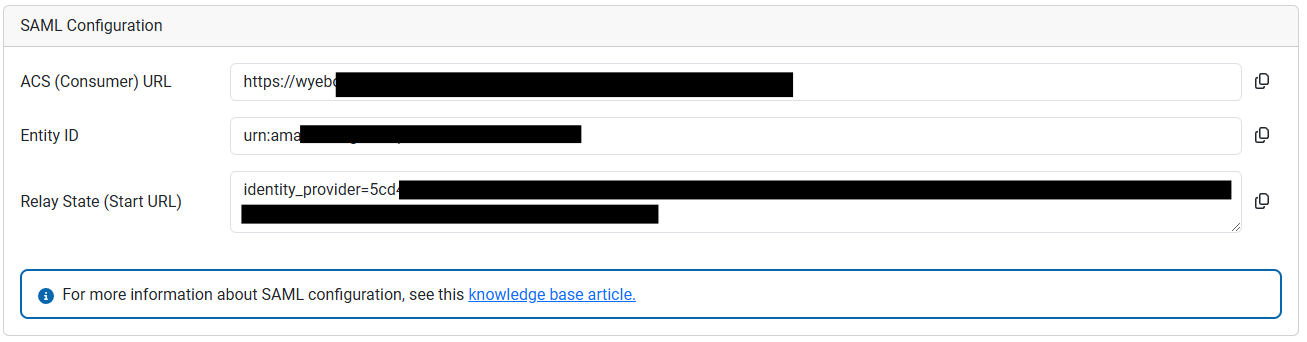
| Google Workspace Field | DEX Agent Dashboard Field |
|---|---|
| ACS URL | ACS (Consumer) URL |
| Entity ID | Entity ID |
| Start URL | Relay State (Start URL) |
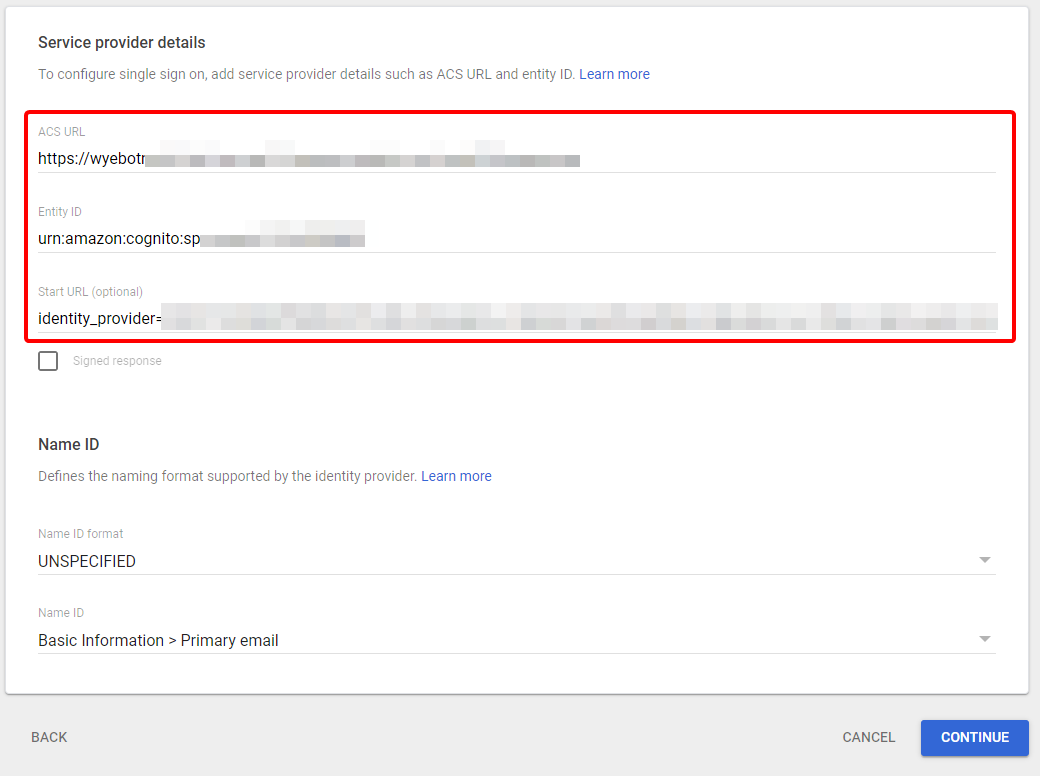
- Click Continue to move to the attribute configuration page, then click Add Mapping and create three new attributes.
| Google Directory Attribute | App Attribute |
|---|---|
| First Name | wyebot-firstname |
| Last Name | wyebot-lastname |
| Primary Email | wyebot-username |
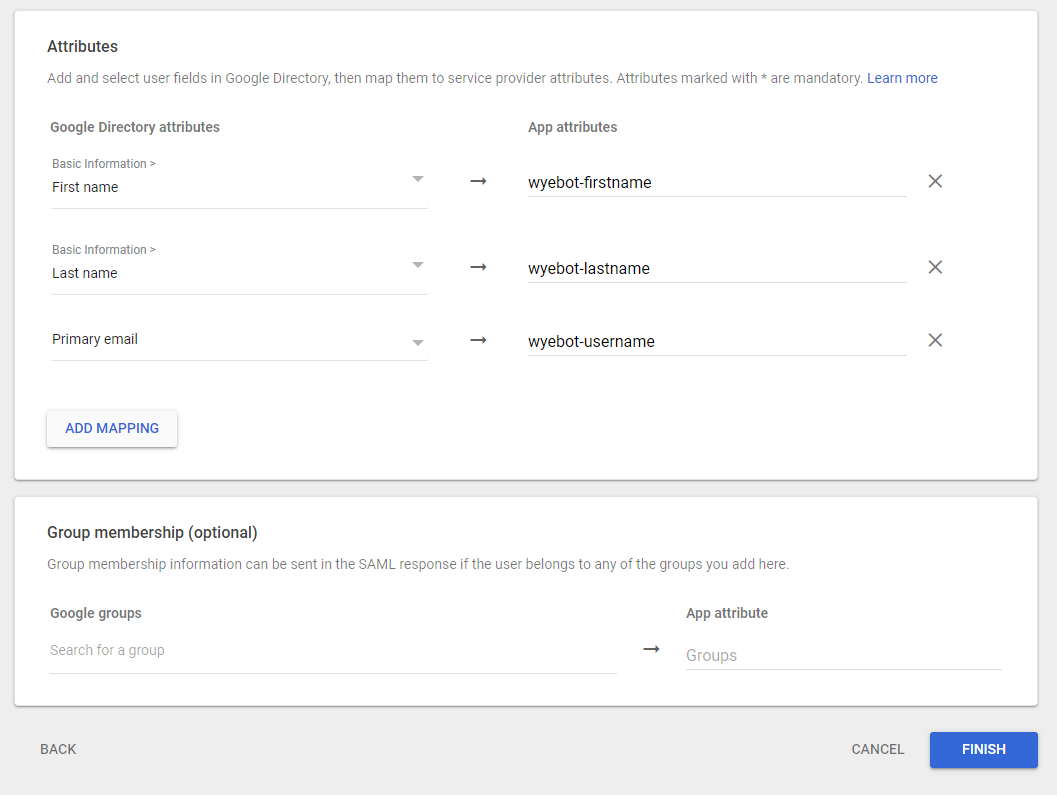
- Click Finish.
¶ Add Google Workspace Users
It may take up to 24 hours for the custom SAML app to be enabled for your Google dashboard. This is a Google limitation.
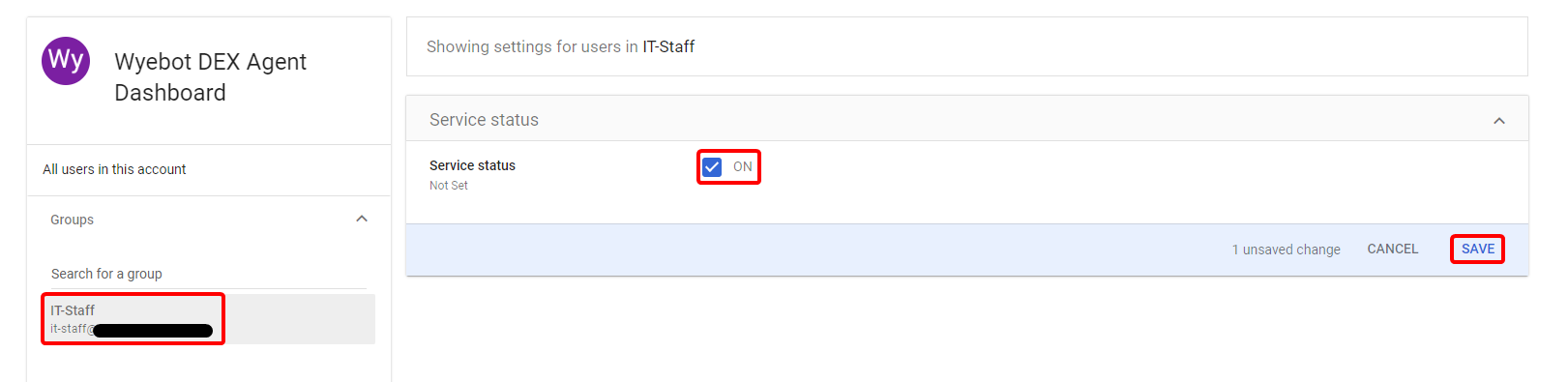
Verify that access has been given to the required users in Google Workspace. For this example, we will add access to a group called IT-Staff
- Click User Access from the App details page in Google Workspace.
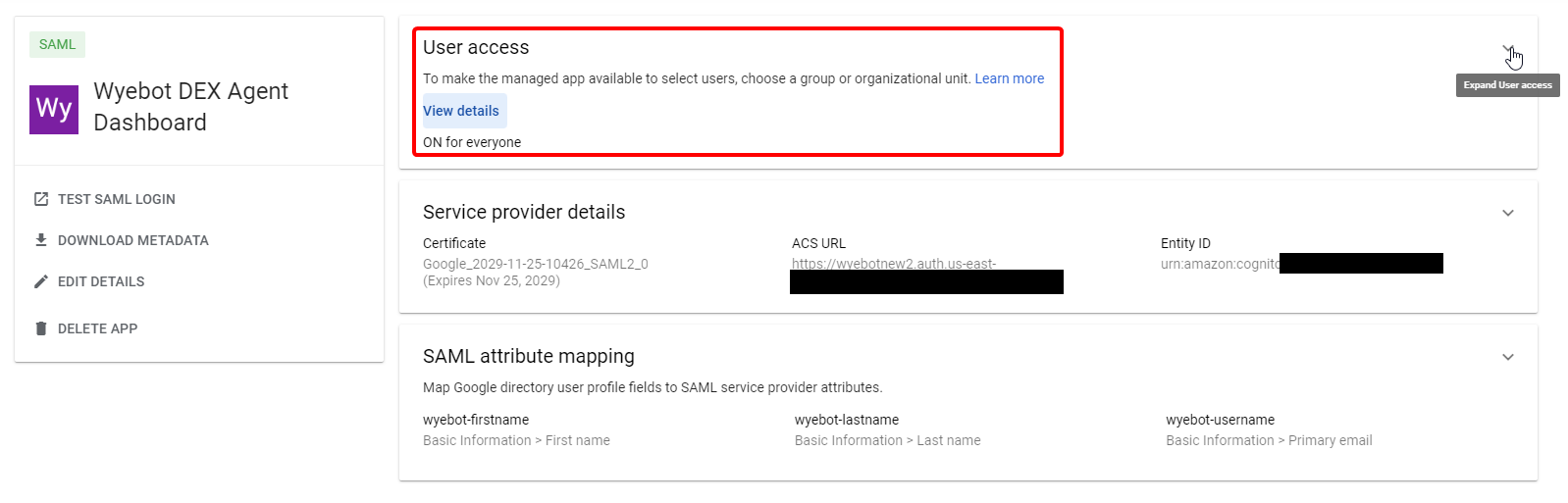
- Expand Groups on the left and click into the search field.
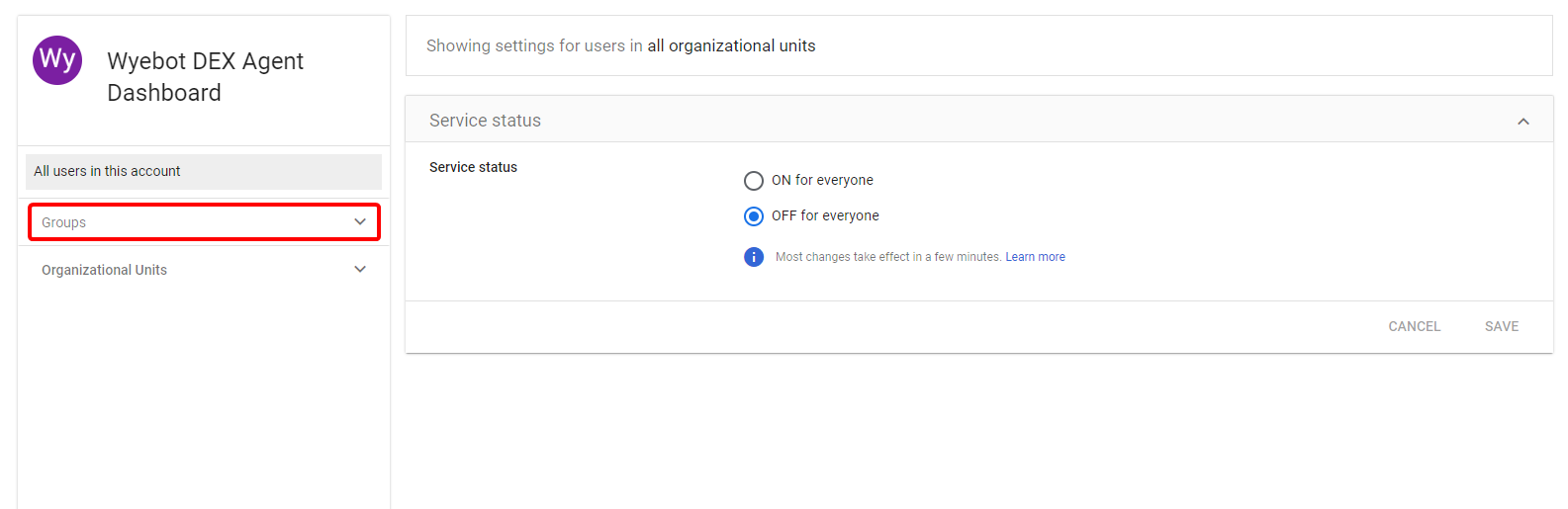
- Select the group you wish to grant access to and check the On next to Service status. Don't forget to save.
¶ Test Connection
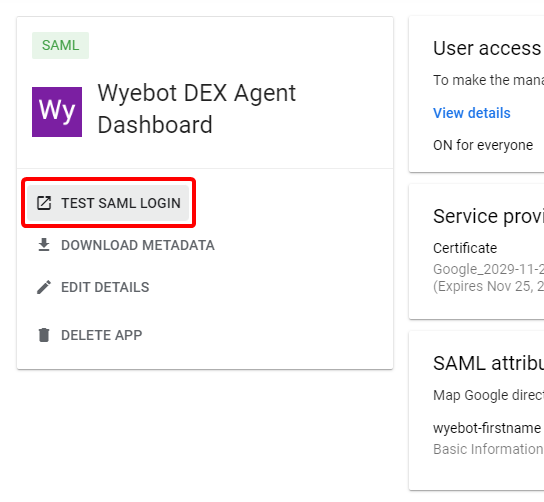
Now that all steps are complete, you should now be able to login using SAML authentication. The details page for the new application in Google Workspace has a Test SAML Login option which you can use to validate the setup.