¶ Introduction
This article describes the My APs page on the DEX Agent dashboard and how to use the dynamic location labels.
¶ Locations
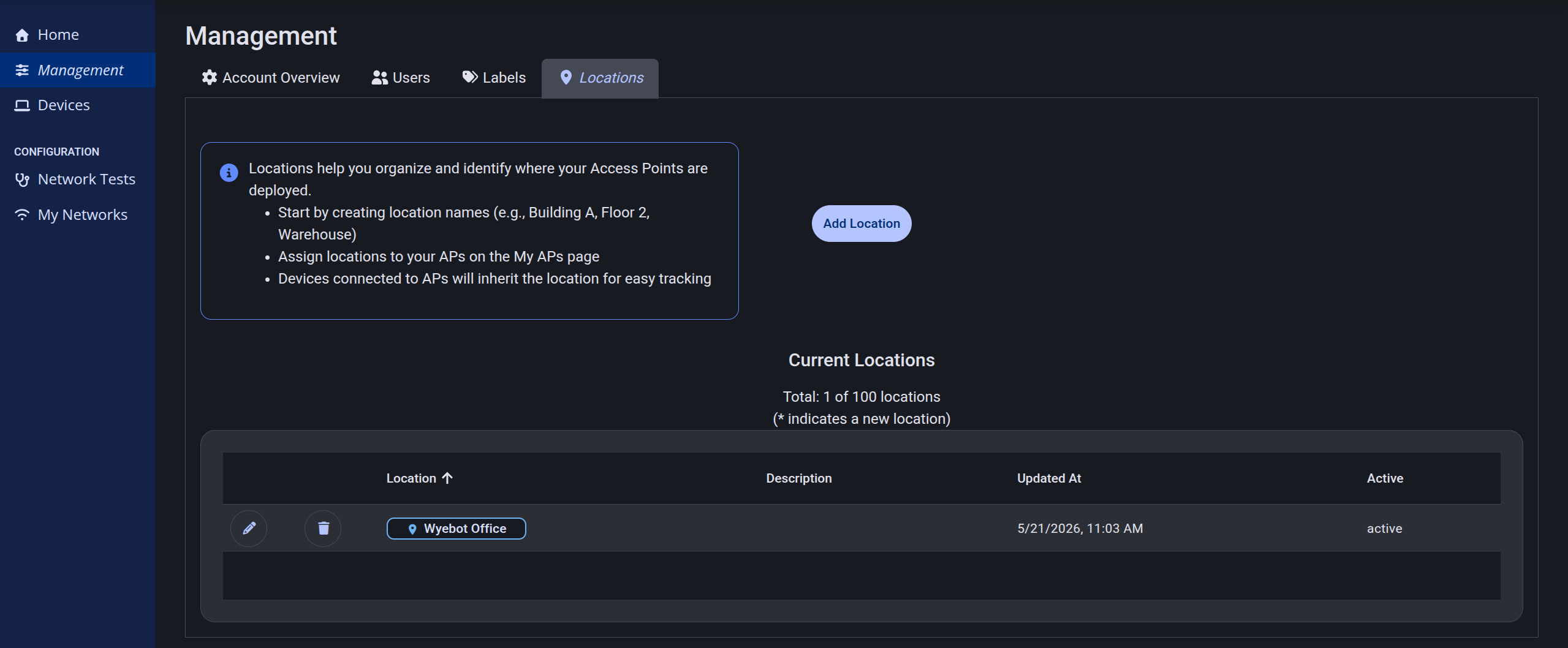
Locations are a type of label that can be created and edited on the Management > Locations page of the DEX Agent dashboard. They are intended to identify the physical location of your APs and, in turn, DEX can infer the locations of managed PCs that connect to those APs.
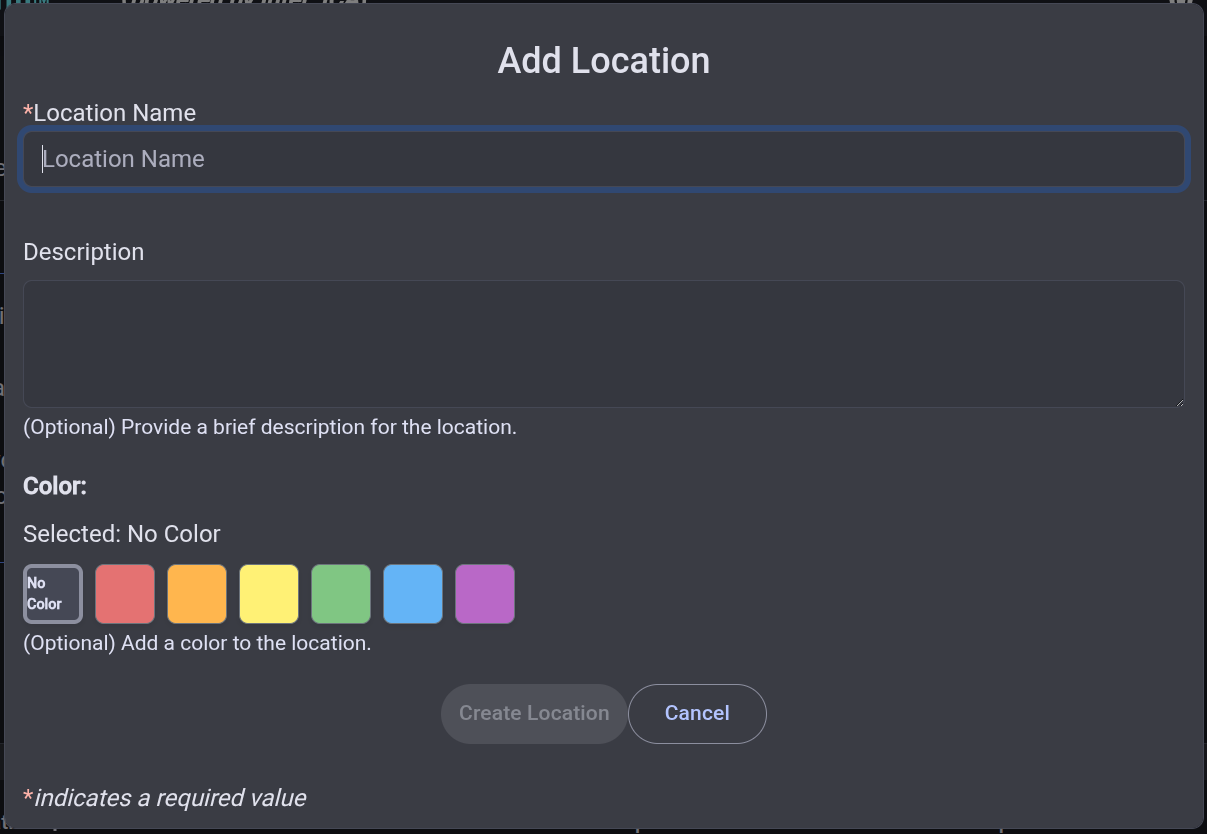
All Locations are defined by a Name along with an optional Description and Color.
¶ My APs
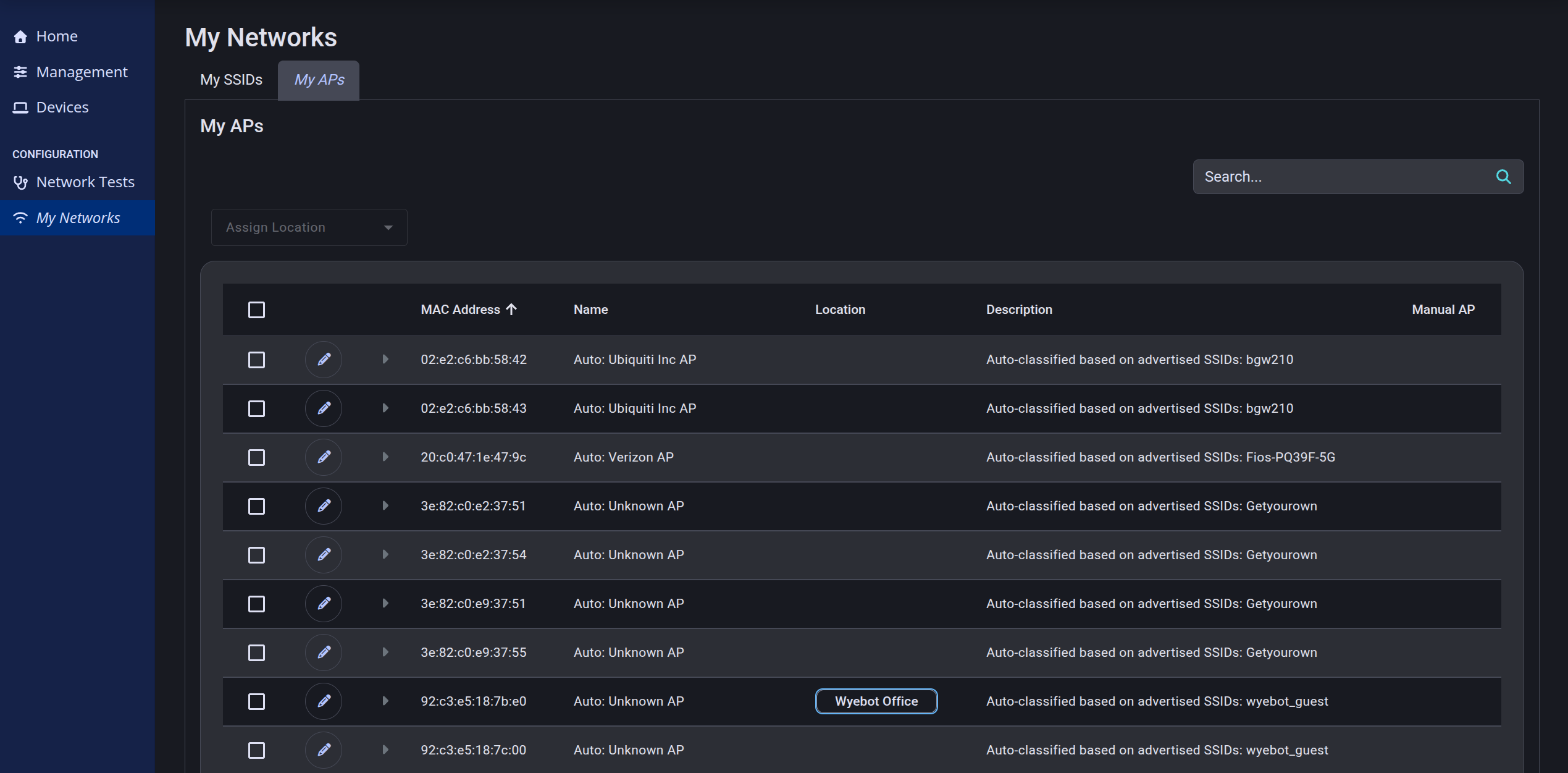
The My APs page is where you can see the list of APs detected by your DEX Agent devices based on your configured SSIDs, allowing you to tag their Location. When a Location is assigned to an AP, any DEX Agent devices will automatically be assigned the same label.
The My SSIDs page must be configured before automatic AP classification can occur.
¶ Assigning Locations
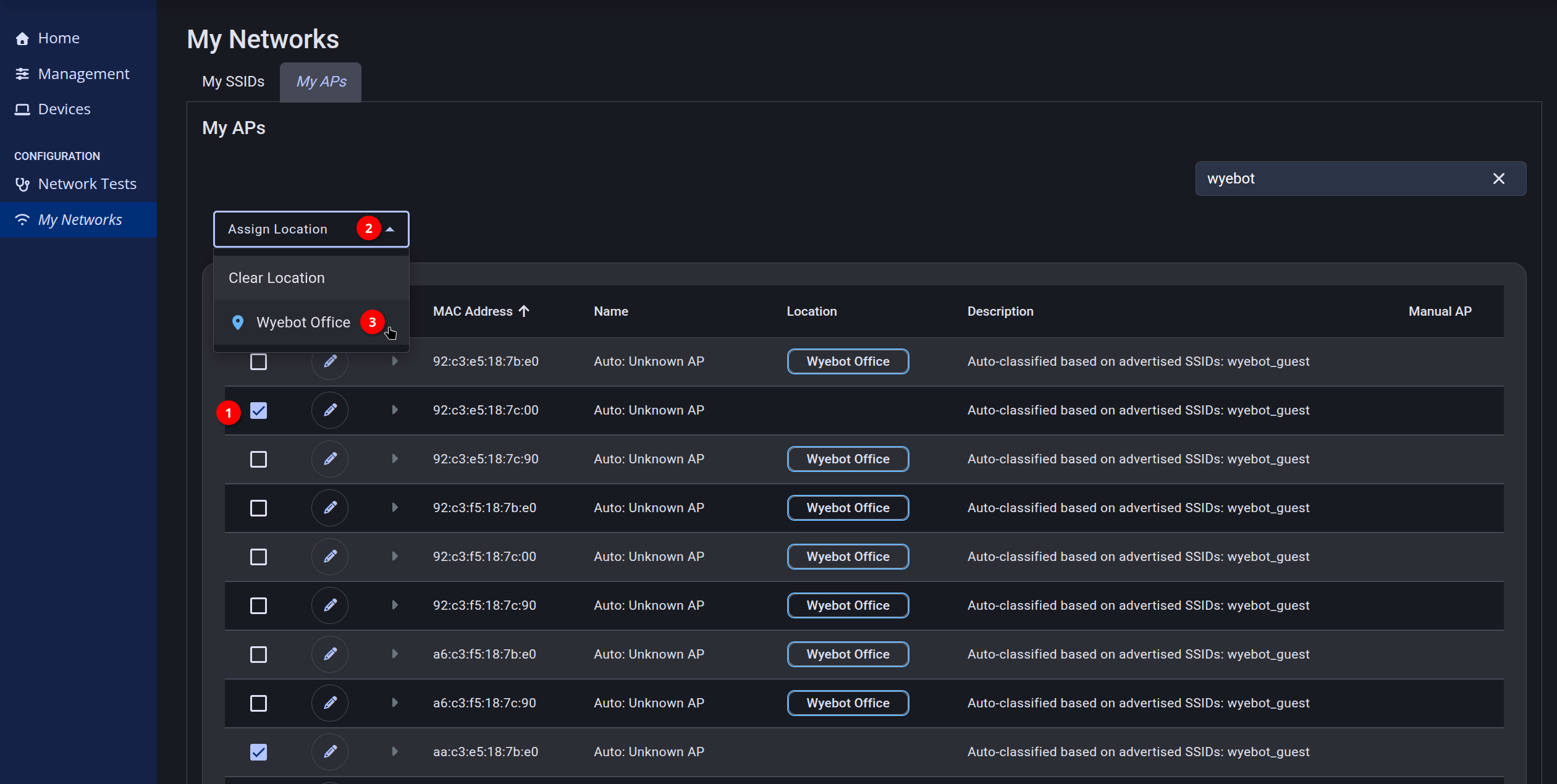
To assign a Location to APs, simply check the intended APs in the list and select corresponding label from the Assign Location dropdown above the table. Each AP can only be part of one Location.
Here for example, we are adding the Wyebot Office location label to two new APs.
¶ Viewing AP Details
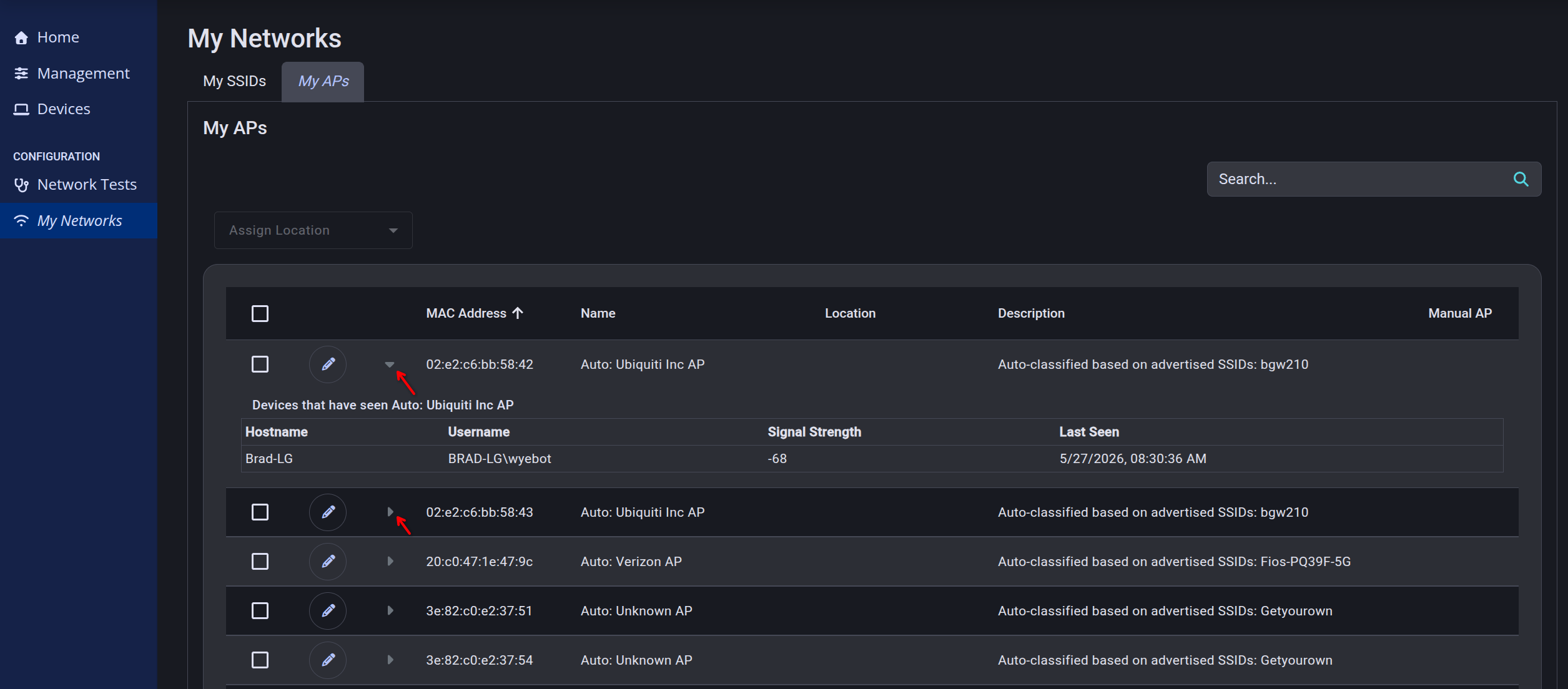
Clicking the small arrow next to each AP entry will show the closest devices that detected the AP.
¶ Editing an AP Name
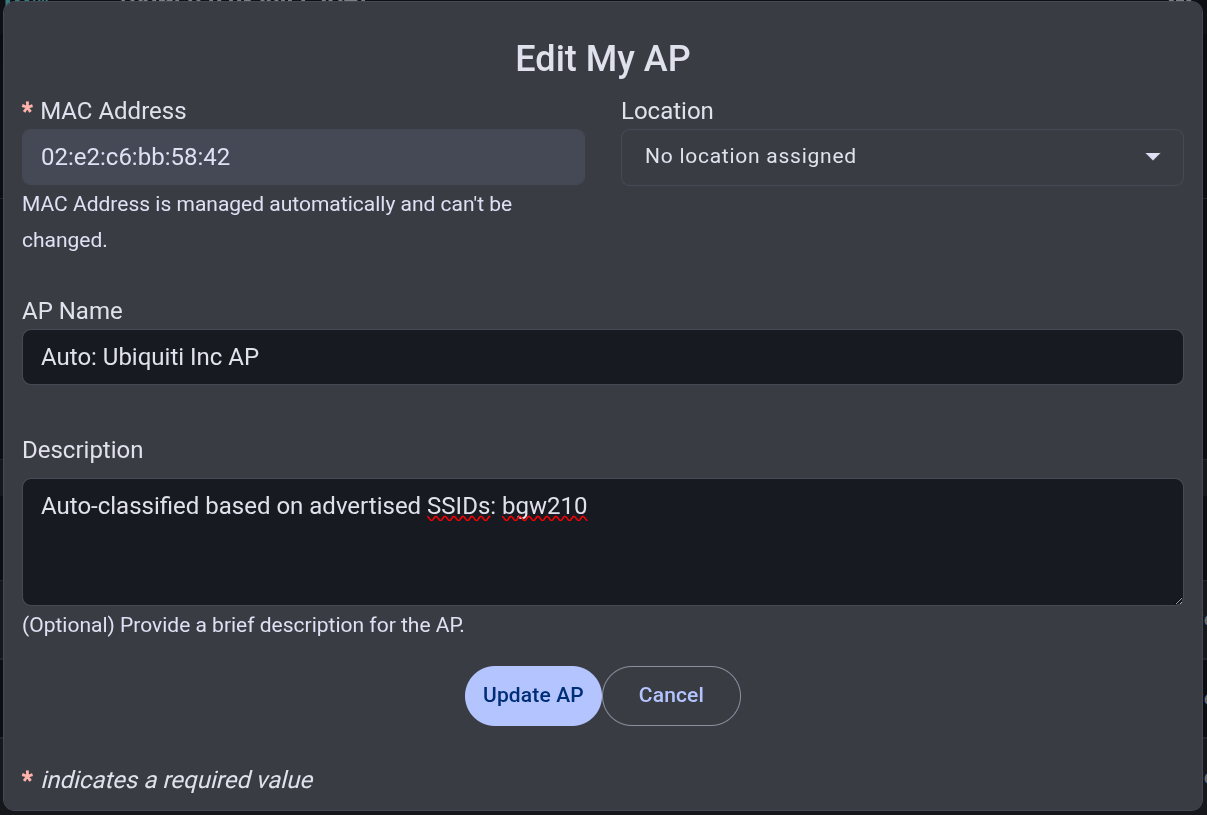
The pencil icon can be used to adjust the automatically assigned AP Name and Description, and Location.
¶ Location Label on Devices
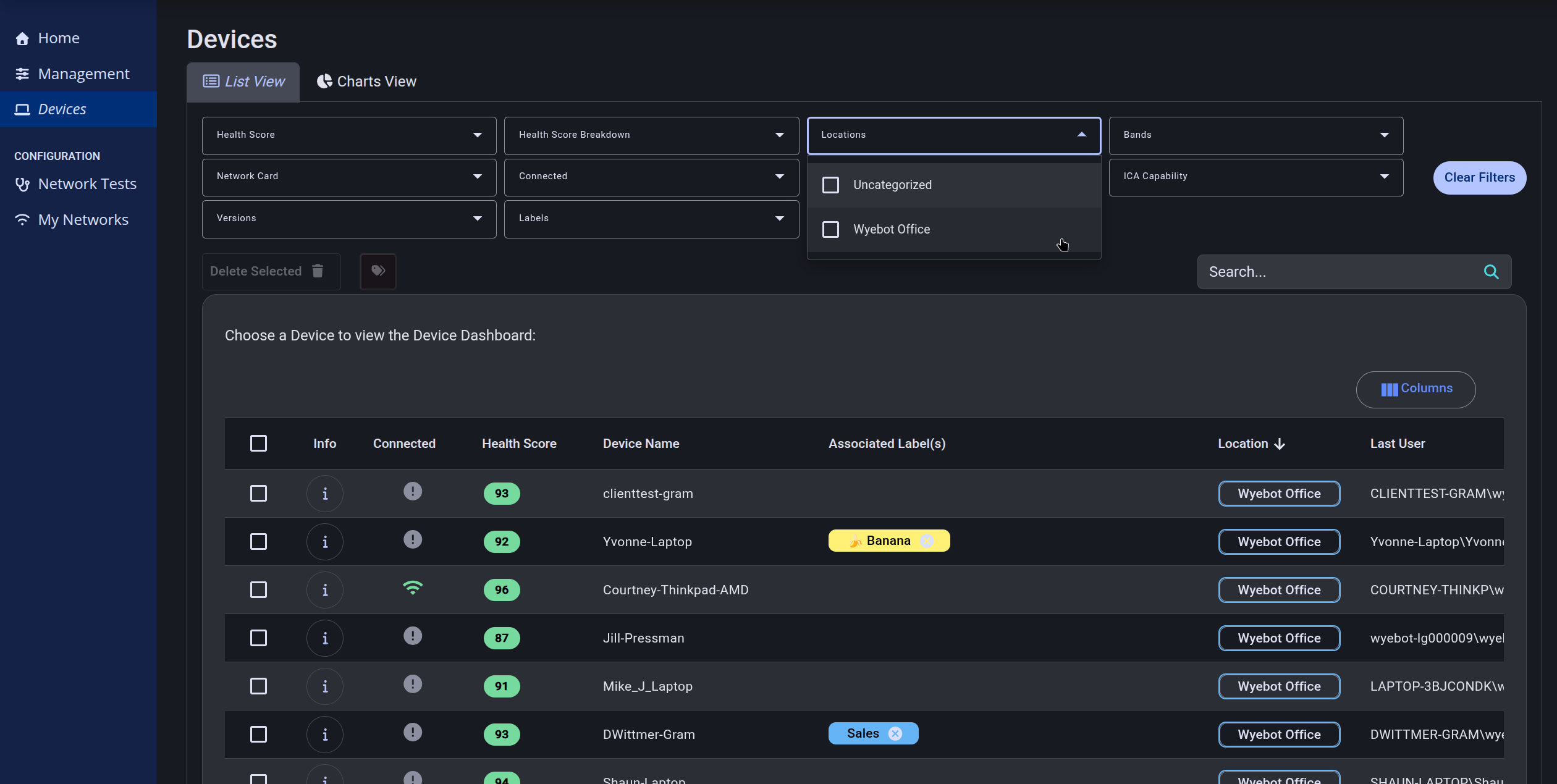
Any DEX Agent device will receive the corresponding Location label when it connects to one of the tagged APs which is shown in a dedicated column and filter on the Devices list.