¶ Introduction
This article shows how to retrieve the installer, and install the DEX Agent software on client PCs. All PCs that run the installer are automatically provisioned and will appear on your DEX dashboard. The same installation file downloaded from your DEX dashboard should be used for each PC.
¶ Installation of DEX Agent
These steps will walk you through the process of downloading your DEX agent installer.
You must use the installation file downloaded from your DEX dashboard which will automatically assign the devices to your account.
-
Open a web browser and log into your DEX dashboard account (https://euroclient.wyebot.com/).
-
Login to the dashboard using your username and password. If you do not have credentials, please contact your system admin. If you are the system admin or need further assistance, reach out to support@wyebot.com.
-
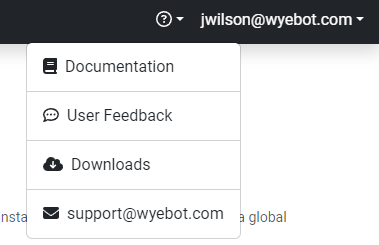
Once you have logged in, click on the question mark icon in the top right of the dashboard. Select the Downloads option.
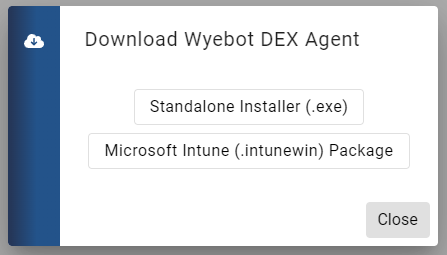
- To retrieve the executable installer file, select Standalone Installer.
-
Once the download complete, double-click the installer to start the installation.
-
Use the installation wizard to proceed with the installation.
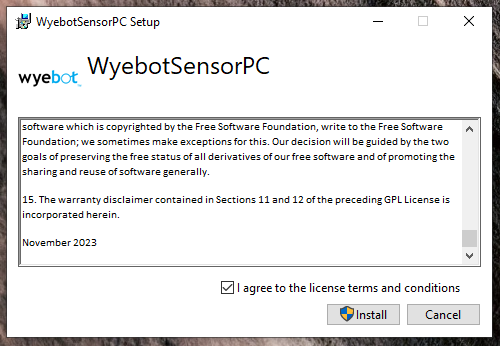
Want to roll it out through Group Policy? The argument /quiet can be used for the installation to proceed "silently" with no user intervention.
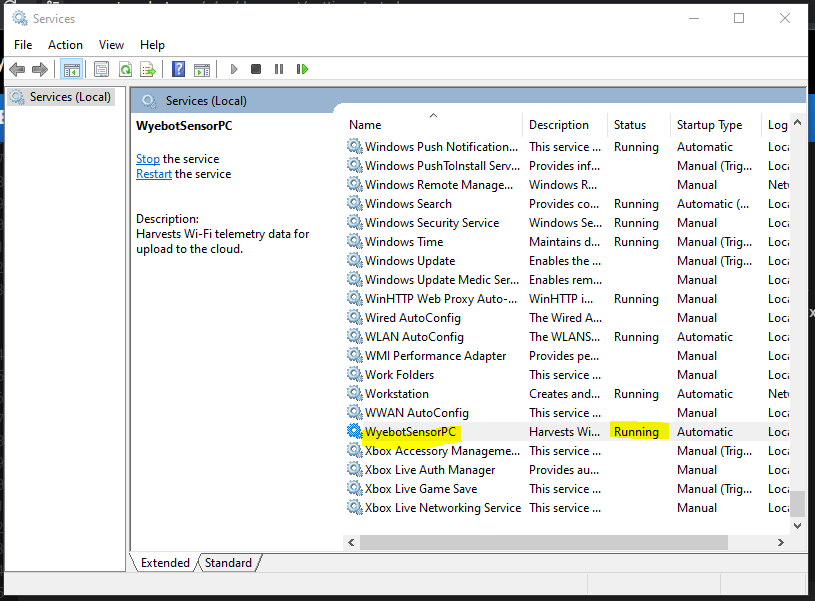
- When the installation is complete, the service called WyebotSensorPC will be running.
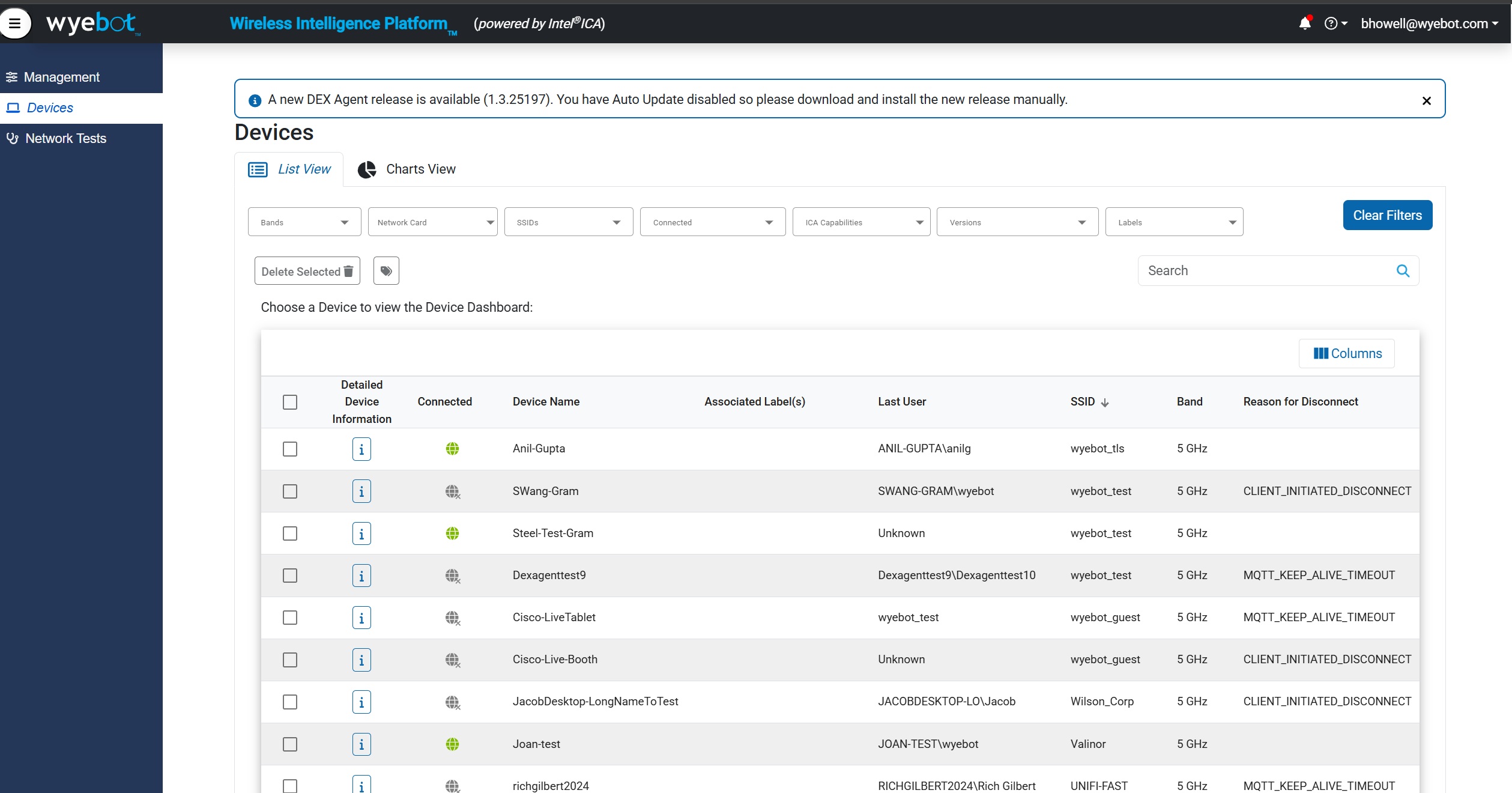
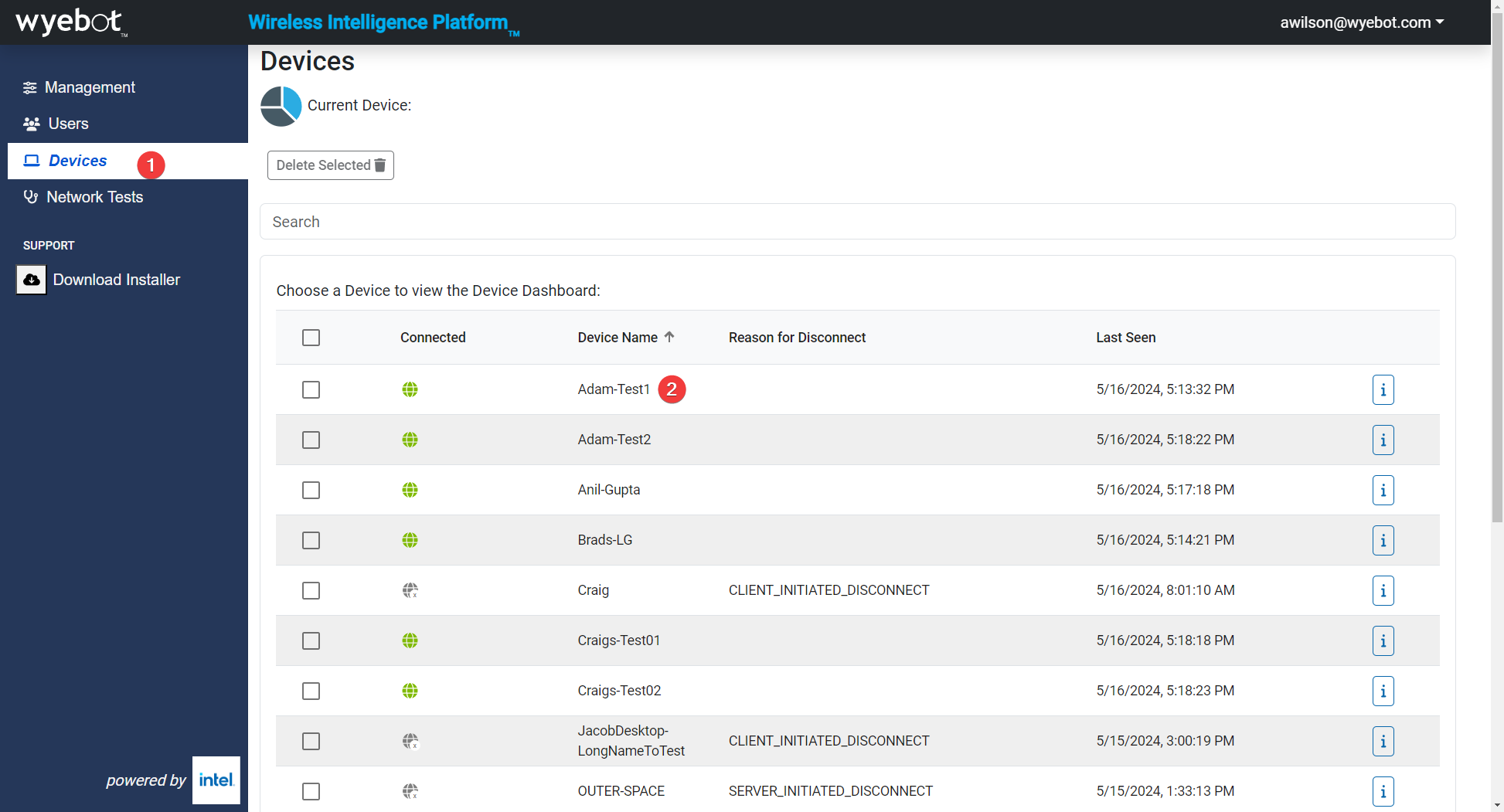
- To find the PC in the DEX dashboard, select Devices on the left side navigation manu. Your PC hostname should be in the list with a green globe icon.
¶ Next Steps
- Network Test Configuration How to use and configure Network Tests from Wyebot DEX Agent
- User CreationCreate other users for your DEX dashboard
¶ Troubleshooting
If your client does not appear on the dashboard or shows as offline, here are some troubleshooting steps.
¶ Make sure the PC is connected to the interent and awake
The DEX Agent service will only report a PC as Online if it is in communication with our cloud service. Also, if a PC has gone to sleep (laptop with lid shut, for example), the communication can be interrupted - this is normal behaivior.
¶ Check if required services are running
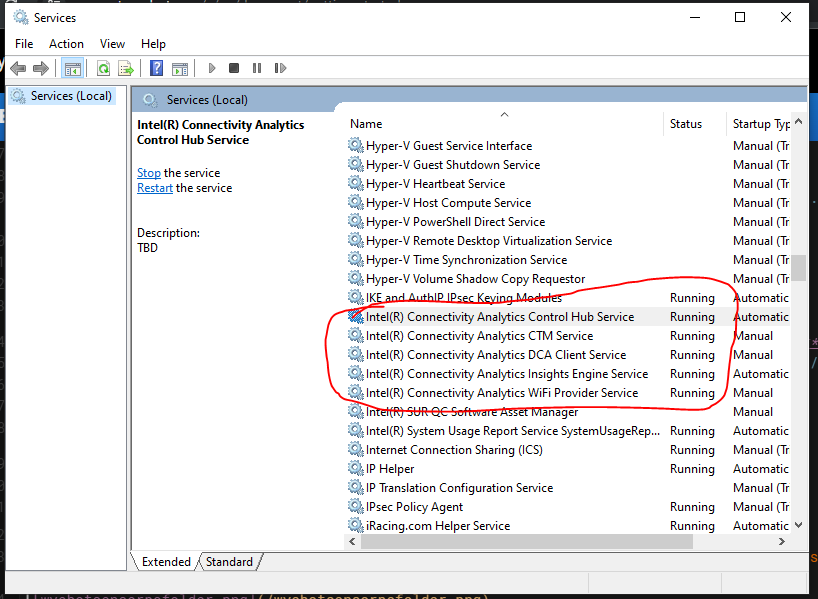
There are two backround components to the DEX Agent software, Intel Connectivity Analytics, and WyebotSensorPC. These should be running as services on the client machine.
- Run services.msc
- Verify Intel Connectivity Analytics is running. There are five different services you should see, shown in the screenshot below:
- Verify that the WyebotSensorPC services is running.
- If any of these services are stopped, start the services. If any of these services are missing, contact support@wyebot.com.
¶ Verify software installation on the client PC
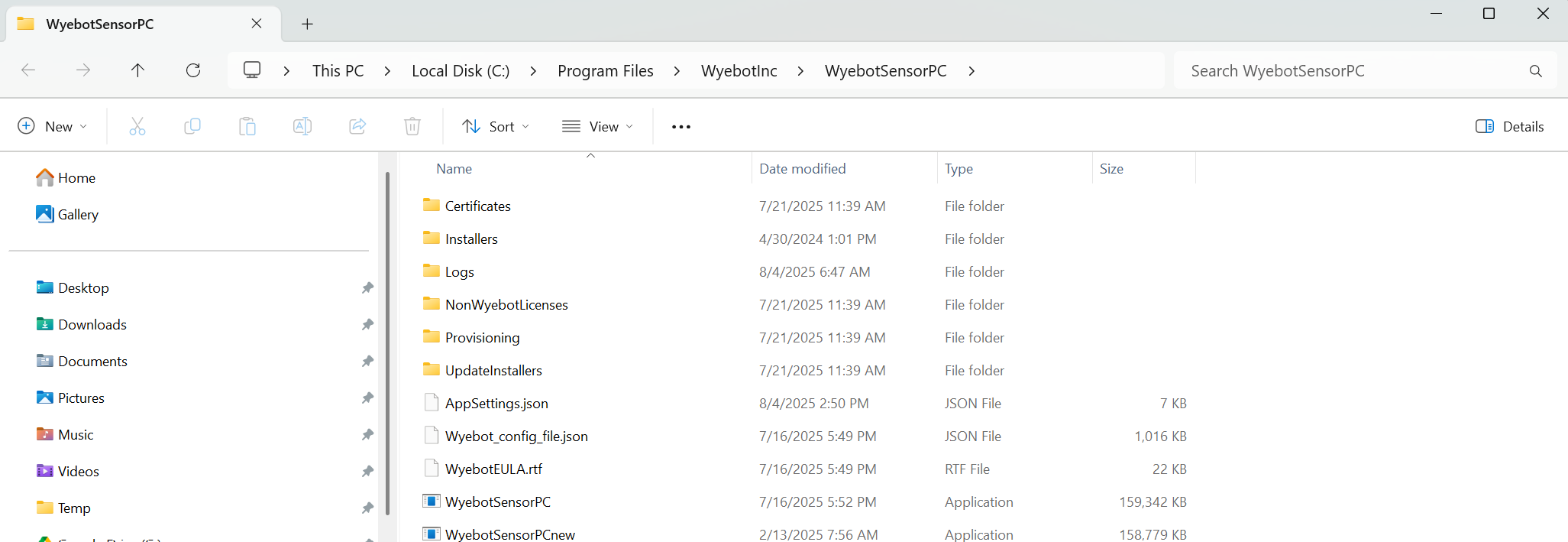
The WyebotSensorPC.exe installer will create a folder C:/Program Files/WyebotInc/WyebotSensorPC. You should see the following items in this folder:
! 
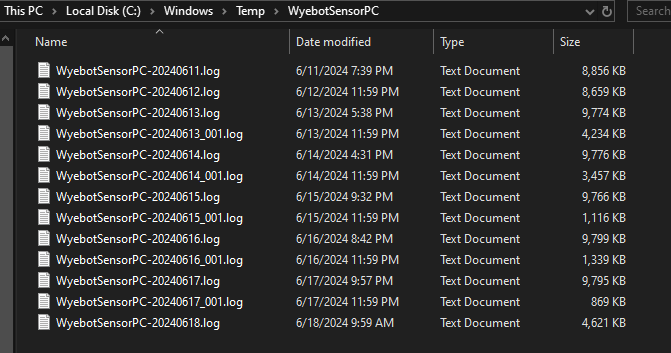
There will also be a log file folder created in C:/Program Files/WyebotInc/WyebotSensorPC/Logs. These log files can help our support team debug any problems with the DEX Agent service.
¶ Verify DEX Agent Version
-
Login to the DEX dashboard.
-
Select Devices on the left side navigation menu and click on your device name.
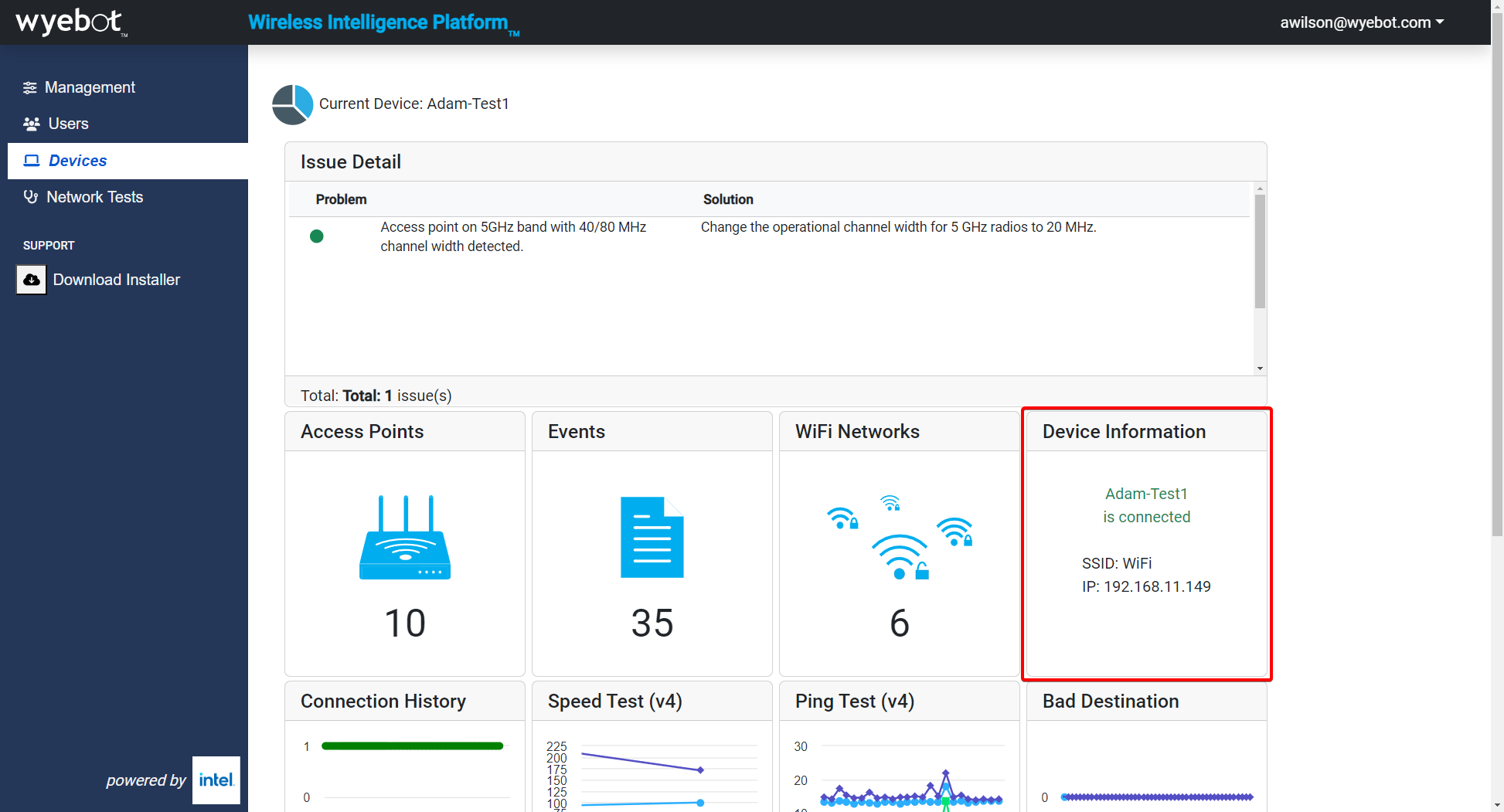
- Click on the Device Information tile.
- You may verify the current software version as shown below.
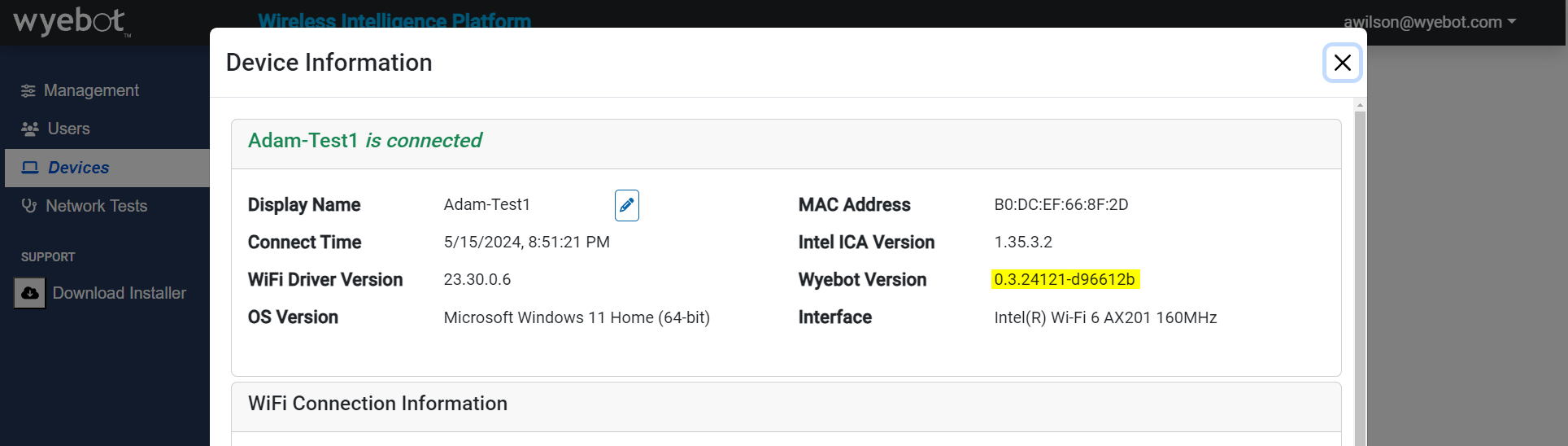
- If the version number is lower than your other clients, restarting the PC should initiate an automatic software update.
¶ Still Need Help?
If you still need assistance, please do not hesitate to contact us at support@wyebot.com.